Para criar cartões YPF na Estrada, acesse Administração > Cartões Corporativos > Cartão.
Ao entrar, será exibida a seguinte tela, a partir da qual você pode gerenciar a criação de novos cartões.
Importante:
A quantidade de cartões a criar dependerá de como o cliente contratou o serviço com a YPF na Estrada:
Se o cliente recebe um único extrato mensal, apenas um cartão deve ser criado.
Se o cliente recebe dois extratos mensais, dois cartões devem ser criados, correspondentes à primeira e à segunda quinzena do mês.
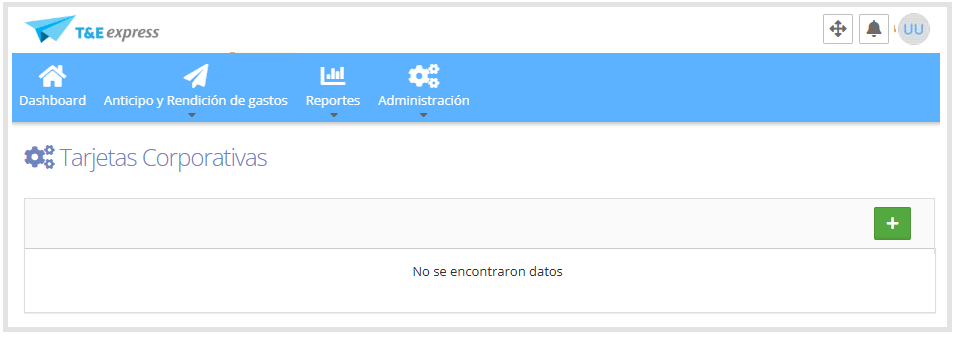
Clicamos no botão + localizado no canto superior direito para adicionar um novo cartão.
Ao clicar, será aberta uma nova tela onde você deve preencher os campos obrigatórios, identificados com um asterisco (*).
Neste caso, você deve selecionar o modelo "YPF en Ruta (.xlsx)".
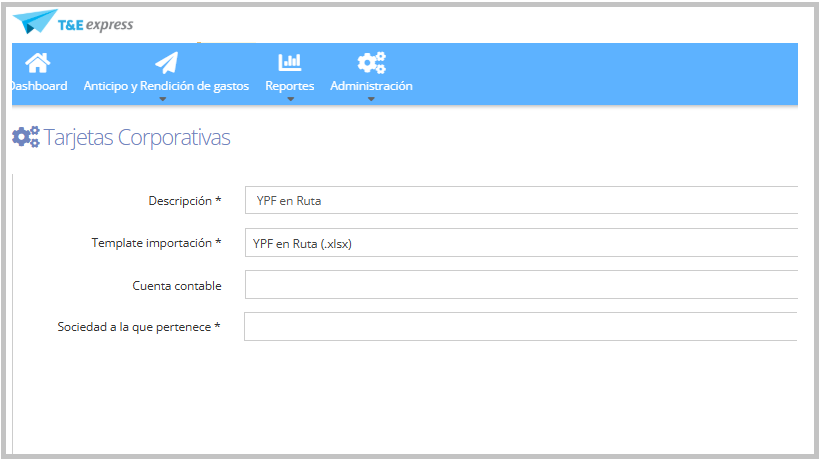
Depois que as informações estiverem completas, clique em Salvar. O sistema nos redirecionará para a tela de cartões corporativos, onde os cartões cadastrados serão exibidos, como mostrado abaixo.
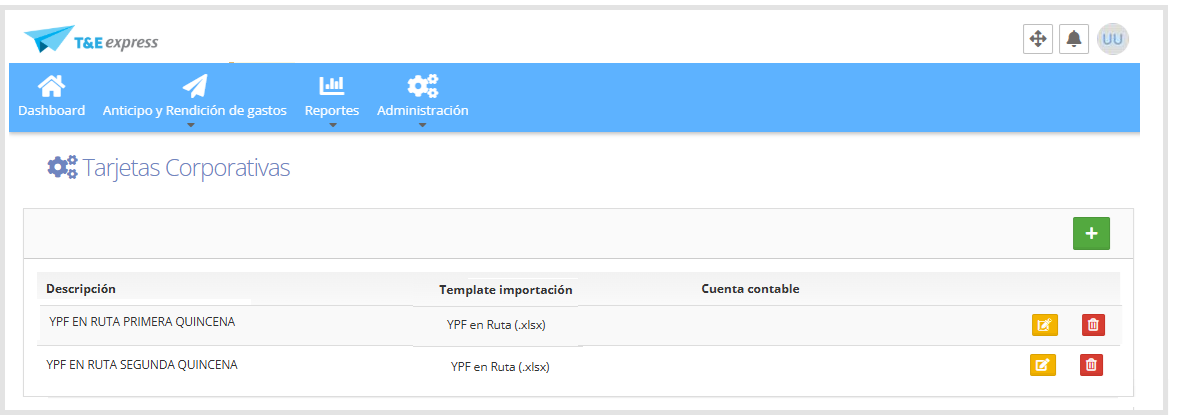
Nesta tela, você pode realizar as seguintes ações.
Botão +: cria um novo cartão corporativo.
Editar

Permite modificar um cartão existente.
Excluir

Permite excluir um cartão corporativo cadastrado anteriormente.
Importante:
O arquivo de consumo correspondente ao período deve ser baixado da plataforma YPF na Estrada.
Para mais informações, consulte o guia Envio do Extrato de Cartão Corporativo.
Ao realizar a importação, o sistema processará cada registro do arquivo, validando o número de CUIL do usuário e associando automaticamente cada lançamento de consumo correspondente.
Para mais informações, consulte o guia Usuários