This section describes how the automatic allocation of expenses to the cost centers (CC) of attendees within an expense report works.
This feature allows the system to automatically assign distribution percentages proportionally, without the user having to fill them in manually.
Important
To use this feature, the following conditions must be met:
The expense category must have the option "Allow attendees" enabled. Otherwise, the attendees table will not be displayed in the expense form.
For more information, refer to the Categories guide.
Additionally, at least one of the following configurations must be met:
The parameter "Can report expenses to other cost centers" must be enabled in the user's profile. Users guide.
The parameter "Allow allocation expenses to multiple cost centers" must be active at the company level. This is enabled by the T&E Express team.
How cost center distribution works
When adding attendees to an expense, you can distribute the amount using each attendee's cost center.
In the attendees table you will see the option "Distribute to their CC" next to each name.
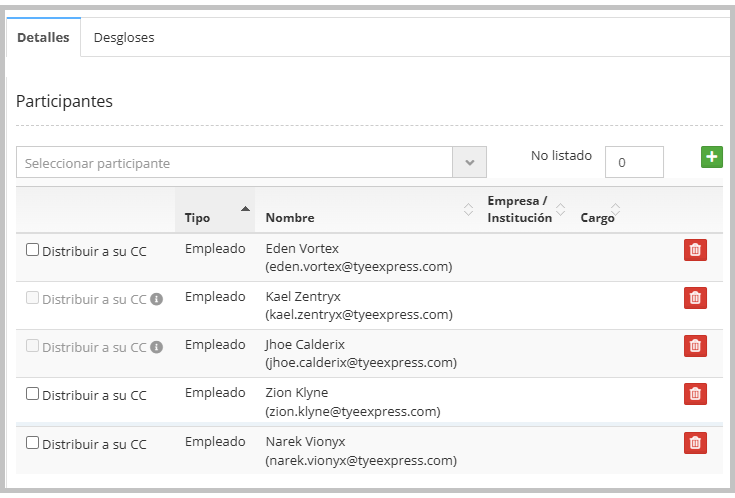
Click the Distribute to Cost Center checkbox of the attendee whose CC should receive a portion of the expense.
You can select more than one.
When checking, the system automatically does the following:
When attendees are selected, the system automatically performs the following actions:
• Adds the attendee's cost center in the Allocations section.
• Calculates the proportional percentage based on the number of selected attendees.
• Displays below the attendee's name the text: "Distributing to: [CC name]".
• If two attendees share the same cost center, the percentages are combined into a single line without duplicating.
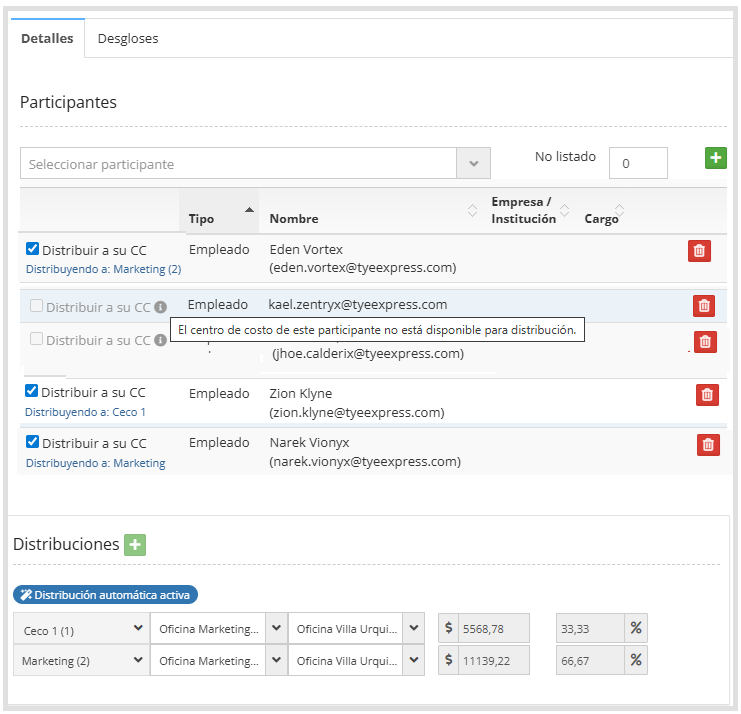
While automatic distribution is active:
The percentage fields are disabled.
The (+) button to add cost centers manually will not be available.
To edit the distribution manually again, uncheck all attendees.
If a manual distribution already existed
If the expense already had a manual distribution, when selecting the first attendee the system displays the following warning before making any changes:

Selecting Yes: the manual distribution is removed and the automatic distribution is activated.
Selecting No: the checkbox is not selected and the manual distribution is kept as is.
You can uncheck attendees at any time:
When unchecking an attendee whose CC no one else shares: that CC line is removed from the Allocations section and the percentages are recalculated.
When unchecking an attendee whose CC is shared by another checked attendee: the CC line remains and only the percentages are recalculated.
When unchecking or removing all attendees: the system returns to manual mode, the percentage fields are re-enabled and the (+) button becomes active again.
Why can't I select an attendee?
If an attendee's checkbox appears greyed out with an information icon, it means you cannot distribute the expense to their CC.
Hovering over this icon will show the reason.
The attendee's cost center belongs to a different company than your expense report.
You can only distribute within the same company.
The attendee's cost center is not available for your user.
You can only distribute to the cost centers enabled in your profile.
Only expenses distributed to enabled cost centers and within the same company will be allowed.