Centros de Custo: para acessar Centros de Custo, acesse Administração > Centros de Custo.
Para cadastrar centros de custo, clique no ícone

localizado no canto superior direito da tela, como mostrado na imagem a seguir:
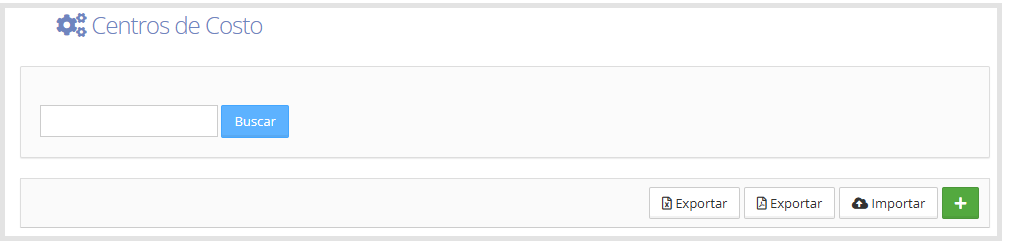
Ao clicar no ícone (+), será aberta a seguinte tela para preencher os dados do Centro de Custo.
Os campos obrigatórios, identificados com um asterisco (*), devem ser preenchidos.
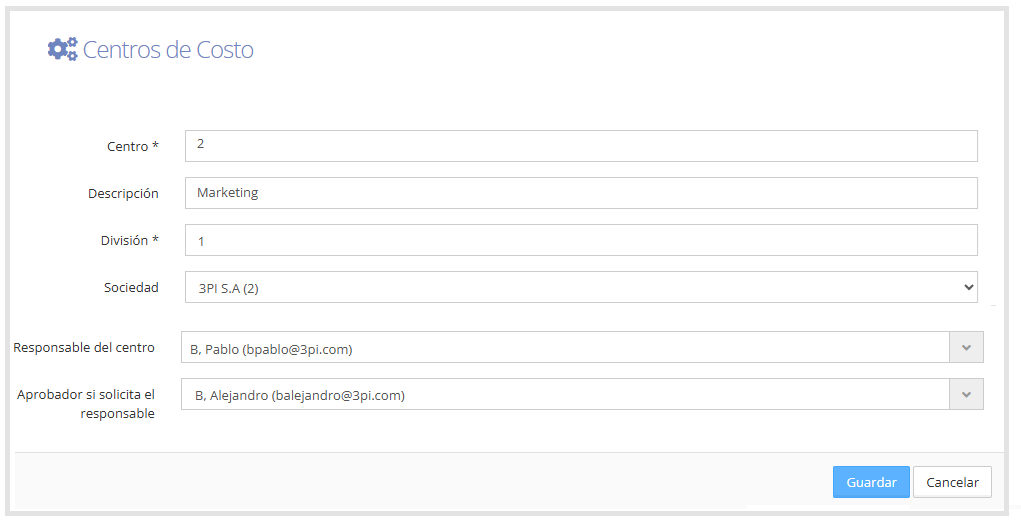
Centro: código do centro de custo.
Descrição: nome identificador do centro de custo.
Divisão: número correspondente à divisão. Se não houver divisão aplicável, utilize 1.
Sociedade: se você precisar vincular uma sociedade ao centro de custo, pode selecioná-la aqui.
Gerente do centro: permite selecionar a pessoa responsável pelo centro de custo.
Aprovador em caso de solicitação do gerente: permite definir um aprovador para o caso de o gerente do centro de custo fazer uma solicitação que exija aprovação.
Ao concluir o preenchimento dos dados e clicar em Salvar, o sistema irá redirecioná-lo para a tela de Centros de Custo, onde você verá os centros de custo cadastrados em formato de lista, como mostrado abaixo:
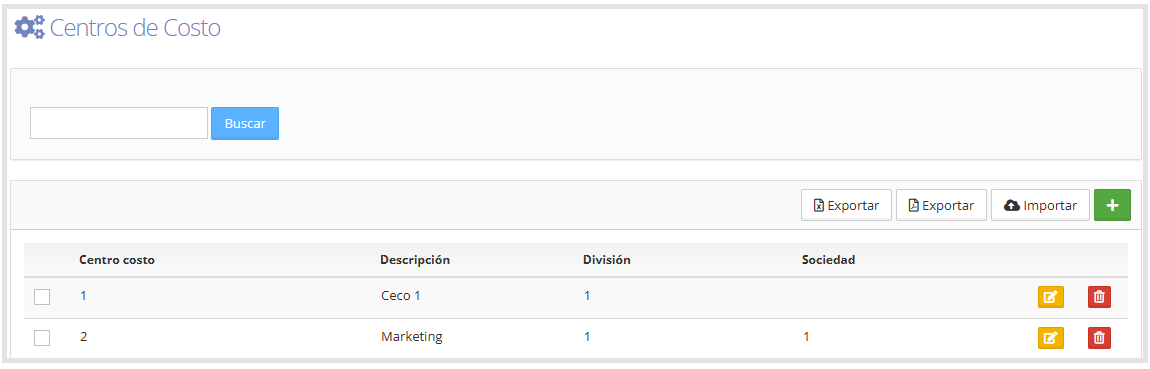
No canto superior direito da tela, você encontrará uma série de botões que permitem realizar diferentes ações.
Exportar: faz o download de todas as informações dos centros de custo cadastrados em formato Excel ou PDF.
Importar: permite carregar um arquivo no formato Excel (.xlsx).
Ao clicar neste botão, é aberta uma janela onde você pode:
Selecionar o arquivo a importar do seu computador.
Fazer o download do modelo correspondente do T&E Express.
Confirmar o upload com o botão Importar, ou cancelá-lo.
No lado direito de cada centro de custo, você pode realizar a seguinte ação:
Editar

Permite editar os dados do centro de custo.
Excluir

Permite excluir o centro de custo.