General
Copy email to Finance when a new cash advance or expense report is created: Enabled so Finance receives a notification every time a user creates a cash advance or expense report.

When Finance approves, send email to (separate with ; if more than one): Fill in with the emails of people who should be notified that Finance approved a cash advance or expense report and who are not T&E Express users — for example, so Treasury or Accounts Payable knows a payment needs to be prepared.

Notifications. Defines the default values for creating users: Lets you select which notifications are enabled when a new user is created.
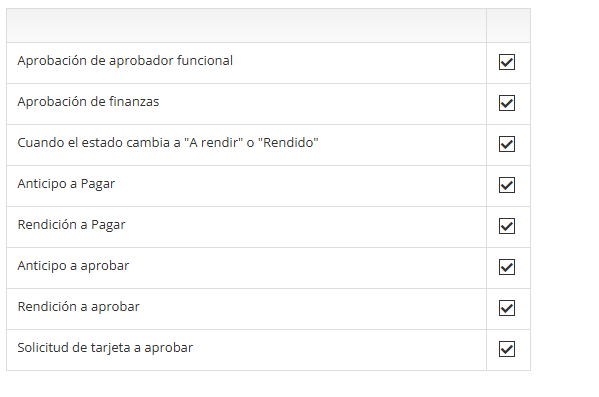
Internal Vendor No. is required: If enabled, the "Internal Vendor No." field will be required and must be filled in when creating a new user or completing the field for an existing user.
Employee No. is required: If enabled, the "Employee No." field will be required and must be filled in when creating a new user or completing the field for an existing user.
Block submission without an approver: If enabled, a request cannot be submitted if the user doesn't have an approver assigned or is configured as having no approver.
Cash Advances
Cash Advance Limit without Finance Approval: The threshold above which Finance approval is required for cash advances. If it doesn't exceed the limit, they automatically move to "Approved" status.

Include foreign currencies in the limit without approval: Checked when the company includes foreign-currency cash advances within the limit without approval.

Cash Advance Only in Local Currency: Checked when the company only issues cash advances in local currency.

Number of unreported cash advances to block requests: Sets the number of unreported cash advances a person can have. T&E Express blocks the ability to create new cash advances. In the user admin panel, this block can be set to be ignored for each individual user.

New cash advance header text: Defines the text shown as the header in a cash advance.

The cash advance header will be displayed as follows:

Expense Reports
Cash Expense Report Limit: Expense reports exceeding the specified amount cannot be submitted.

Card Expense Report Limit: Expense reports exceeding the specified amount cannot be submitted.

Expense Report Limit for Expenses Without a Receipt: Expense reports exceeding the specified amount for expenses without a receipt cannot be submitted.

Show billable field in expenses: Adds the "billable" field to the expense form.

Allow partial re-billing: Allows part of an expense to be marked as billable. When enabled, a field is shown to enter the amount to be re-billed.

Show non-reimbursable field in expenses: Adds the "non-reimbursable" field to the expense form. Used for expenses with vendors that have an open account with the company — the user doesn't pay them directly, but they still need to appear in the expense report to reflect the total expense.

Receipt required if amount >=: Filling in this field requires users to attach a receipt or mark that one doesn't exist, whenever the total expense exceeds the entered amount.

Show "No receipt" field: Enables the field in the expense form to indicate that an expense has no receipt.

Cash advances can be reported partially: Allows users to report cash advances partially, showing the balance as it's used and allowing cash advances to be linked across different expense reports.
If partial reporting isn't allowed, it's recommended to add a category to record the return of any surplus.

The user can create new vendors: If enabled, when entering an expense with taxes, the user can enter the Tax ID (CUIT) of a vendor not already registered in the system. If not enabled, only existing CUITs can be selected.

The user must select all allocation fields: Requires the user to fill in all fields defined in the allocation before saving or submitting.

Block exchange rate changes in expenses: If enabled, the user cannot modify the exchange rate. The value in the expense is shown in read-only mode.

New cash expense report header text: Allows adding a comment or instruction defined by the company. The text is shown in red.

The expense report header will be displayed as follows:

New card expense report header text: Allows adding a comment or instruction defined by the company. The text is shown in red.

The expense report header will be displayed as follows:

Message text after submitting an expense report: Allows customizing the alert that appears on screen once an expense report is submitted. Can be used to include company-defined reminders.

When the expense report is submitted, the alert will be displayed as follows:

Send physical receipt submission reminder to users: If enabled, a reminder is sent for users to submit the physical receipts for their expense reports.

For expense reports submitted from: You can customize the date from which physical receipt submission reminders will be sent.

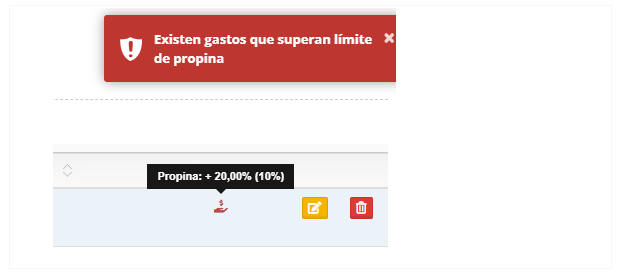
Tip cap: Sets the maximum percentage allowed for a tip on an expense. If the tip amount exceeds that percentage, a red icon will appear in the lower right corner of the expense, indicating that the set limit was exceeded — the expense report can still be submitted.

The icon will be displayed as follows:

Block if tip cap is exceeded: If enabled, submitting the expense report will be blocked if the tip exceeds the configured percentage. A red icon will appear in the lower right corner of the expense, along with an error message in the upper right corner.

Both the icon and the error message will be displayed as follows:
Accounting can modify expense category when approving: If enabled, allows the accounting profile to edit the expense category during expense report approval.

Cash Expense Report Only in Local Currency: If enabled, only expenses in local currency can be reported for cash expense reports.

Block creation of expense reports with multiple currencies: If enabled, expense reports with different currencies cannot be created.

Block change to Reported status if there are pending returns: When this setting is enabled, the system prevents an expense report from moving to "Reported" status if there are cash refunds or cash advance surpluses that have not yet been recorded as received by Finance/Treasury.

Currencies
Local Currency: Defines the currency in which totals will be displayed.

Cash advance and expense report currencies: Defines the currencies users can see when requesting a cash advance or reporting expenses. The box on the right contains the currencies that will be displayed.

MAPS
Require map use for kilometers: When this option is enabled, the map button will appear on the expense form, which the user can use to indicate the route. Kilometers will be calculated automatically based on the selected route.

Block manual distance entry: This option can only be enabled if "Require map use for kilometers" is already active. When enabled, kilometers cannot be entered manually — the values automatically calculated from the route on the map must be used.

For more information, see the Create Expense Report guide
System
System name: Allows customizing the system to display a different name instead of T&E Express.
Subdomain: Defines the URL used to log in to the system.
Logo: Allows customizing the system to display the company's logo instead of T&E Express's.