This section allows the petty cash custodian to view its current status, add vouchers, register expenses, refunds, and confirm replenishments. The entire operational cycle of the fund is managed from this screen: from the cash delivery to the reporting and replenishment.
Manage Petty Cash: To manage petty cash, the custodian must go to Travel & Expenses "T&E" > Petty Cash > Petty Cash. Upon entering, the petty cash detail will be displayed.
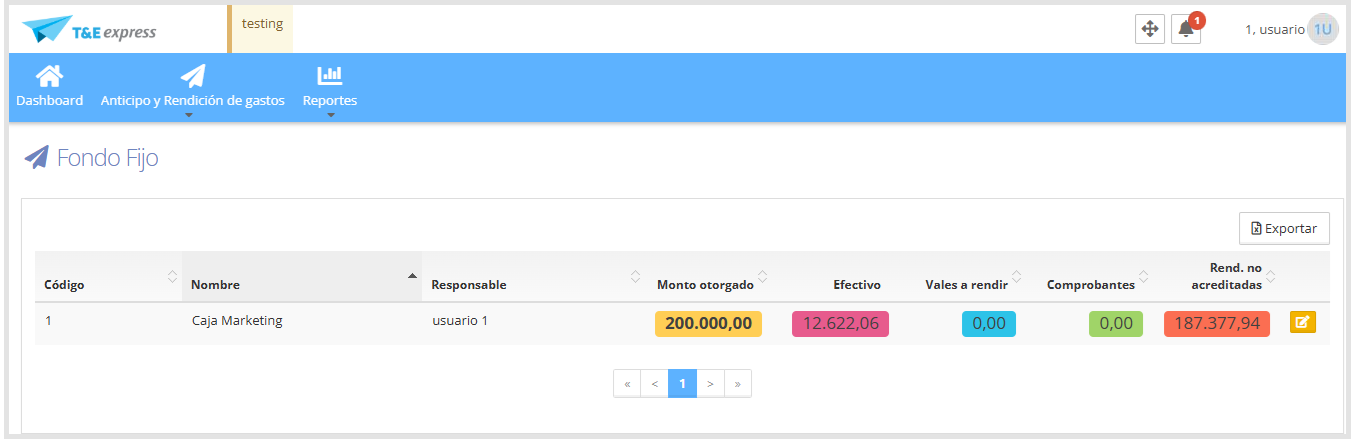
You will see the petty cash status:
Amount granted: total amount granted to the fund.
Cash: available cash to use.
Vouchers: amount of delivered vouchers that have not yet been settled.
Receipts: amount of registered expenses.
Expense reports unaccredited: amount corresponding to expense reports pending accreditation.
When you click the icon

the following screen will be displayed.
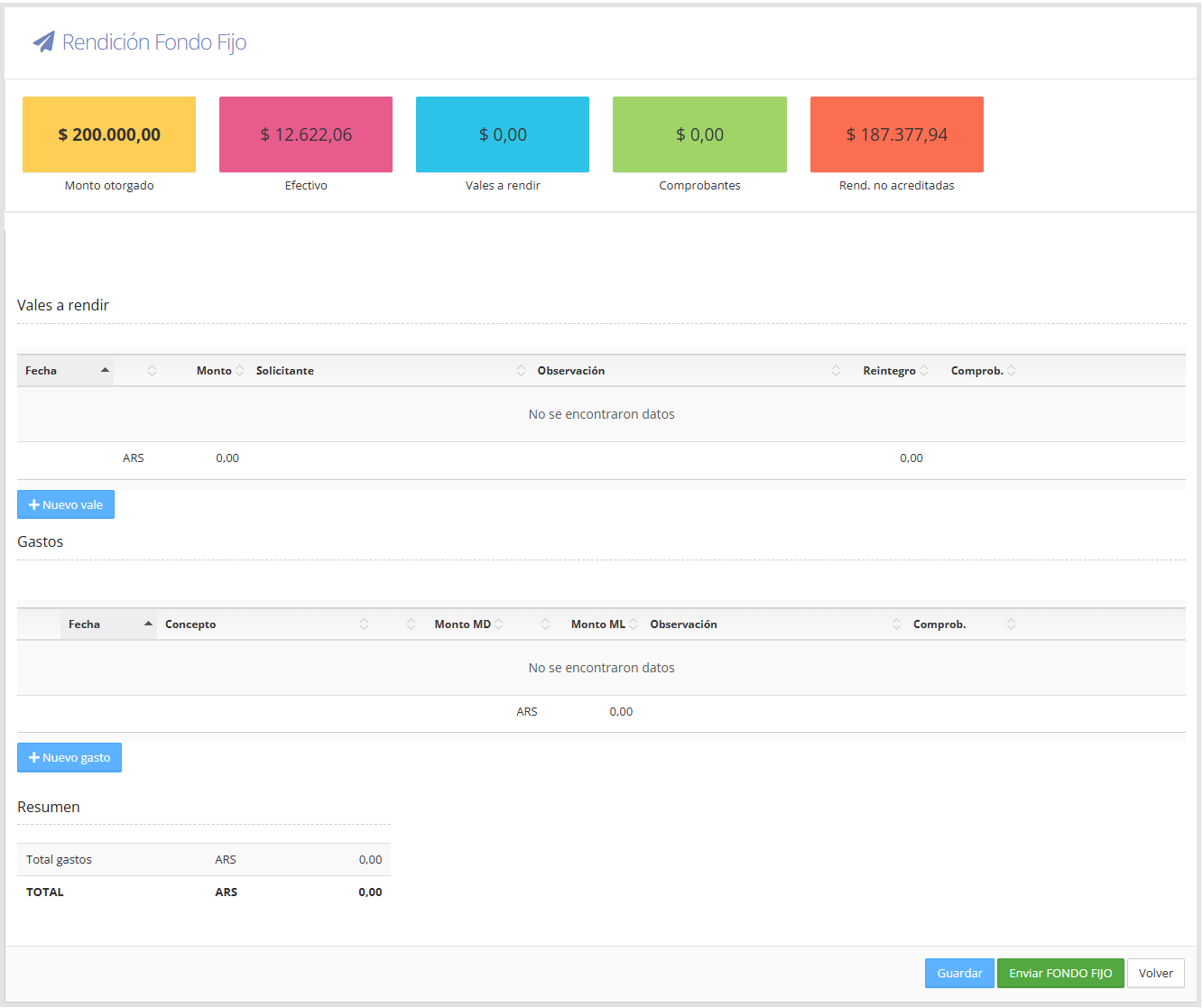
New Voucher: Every time the custodian delivers money to an employee to make a purchase, a voucher must be added.
To do so:
Click New voucher
Fill in the required fields, identified with an asterisk (*).
As shown below.
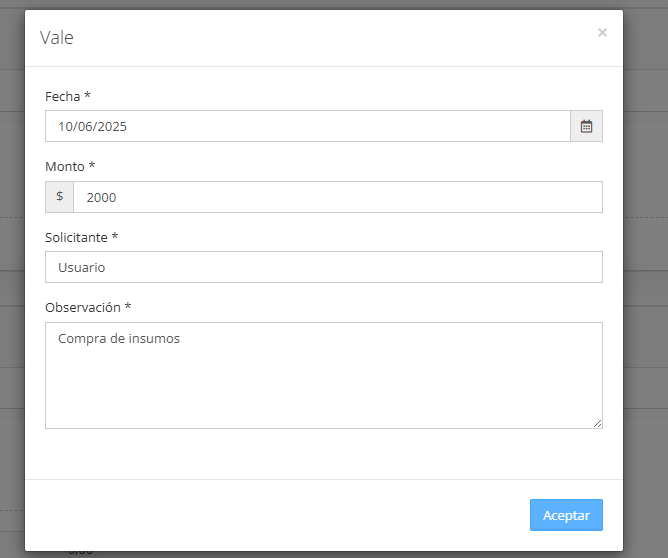
When you click Accept, the voucher will be saved and displayed in the vouchers list. From here you can:
Edit the voucher by clicking the edit icon.
Delete the voucher with the delete icon.

Note: Once the voucher has been saved with the "Save" button, located in the bottom right corner of the screen, it will no longer be possible to edit or delete the voucher.
New Expense: When clicking "New expense", if there are imported receipts, they will be displayed so you can include them in the expense by clicking the button.

To view all receipts, check the box that says "Show all", located on the left side, as shown below.
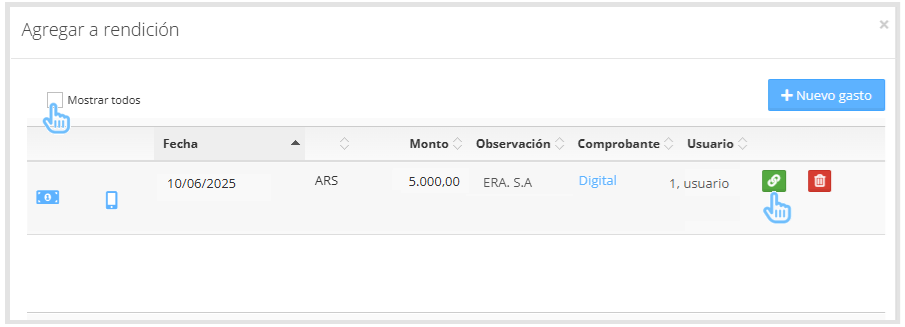
When linking an imported receipt, the system will automatically fill in the date, amount, and comment fields of the expense.
If there are no imported receipts, the expense form will open.
Fill in the required fields, identified with an asterisk (*), as shown in the image below.
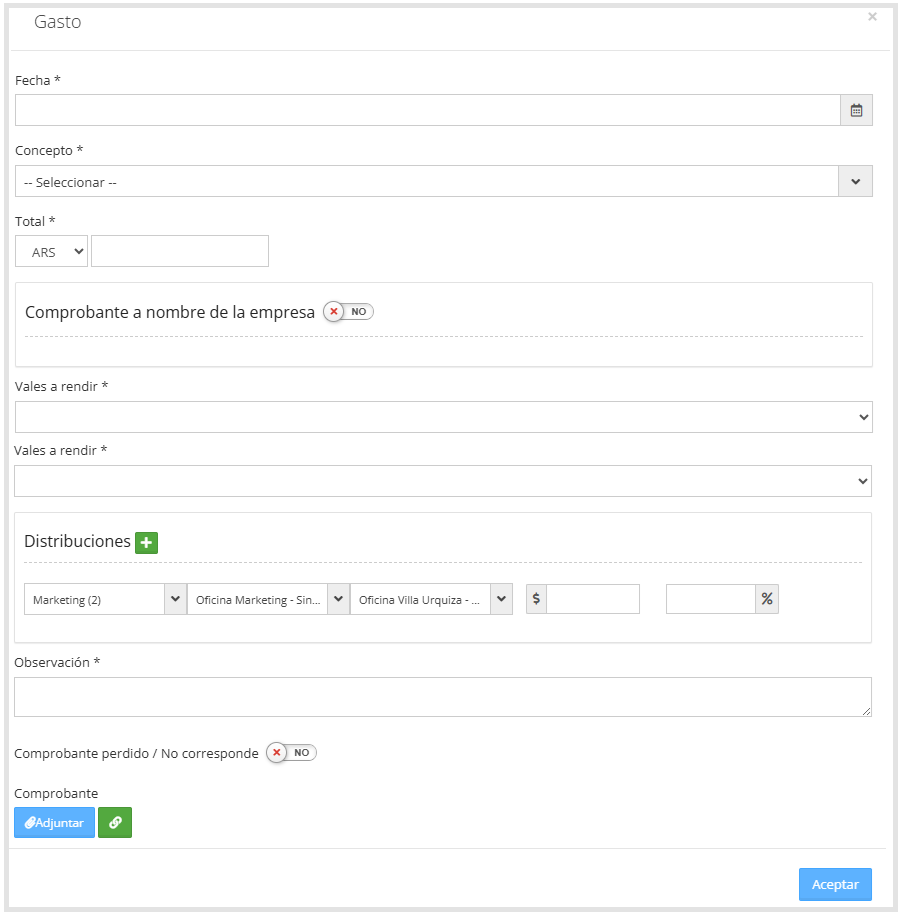
The Vouchers field allows you to link the expense to a previously delivered voucher.
If the expense was made with money delivered via a voucher, select that voucher in the Vouchers field.
If the expense does not correspond to any voucher, select the "No voucher" option.
It is important to correctly associate the voucher so the system can detect whether a reimbursement needs to be registered.

Once the expense has been entered, the screen will be displayed as follows.
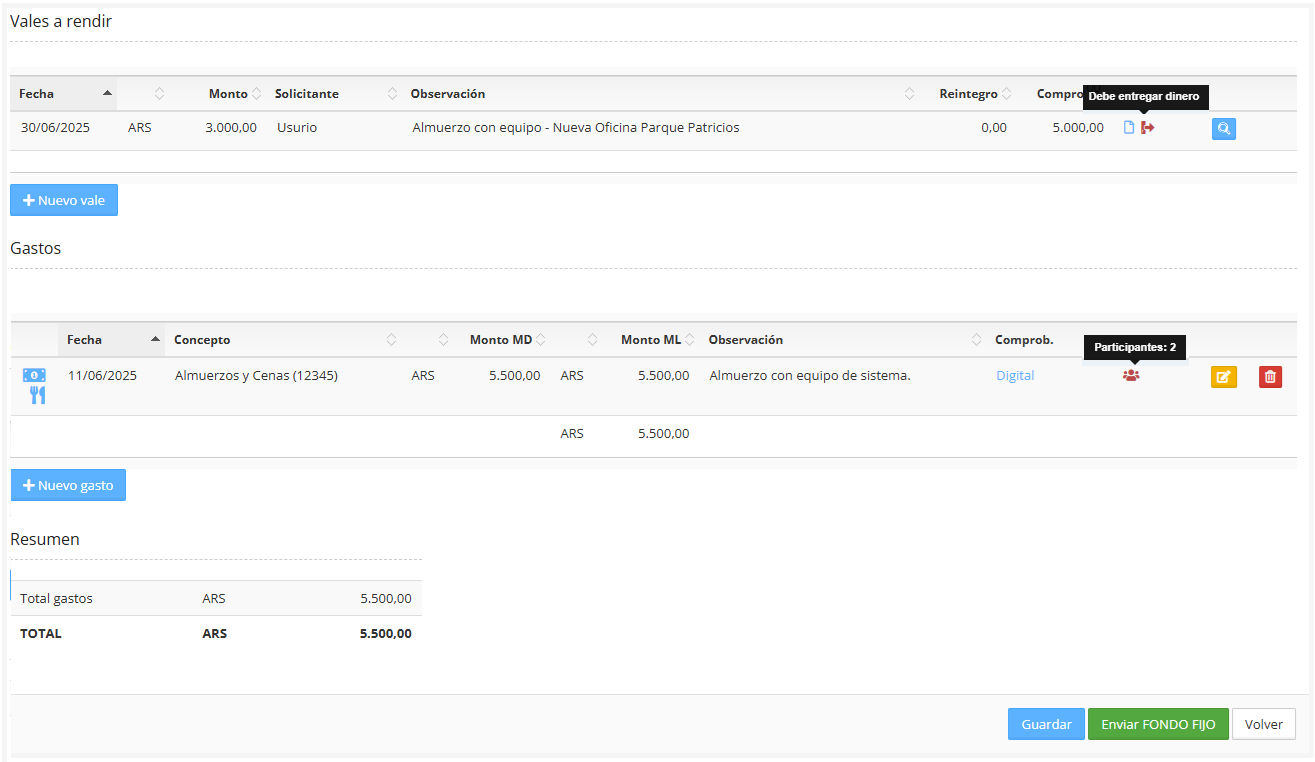
Cash refund:
If the custodian receives a receipt and has money left over from the delivered voucher, the corresponding reimbursement must be registered.
Click the magnifying glass icon

of the corresponding voucher.

Fill in the Reimbursement field with the returned amount.
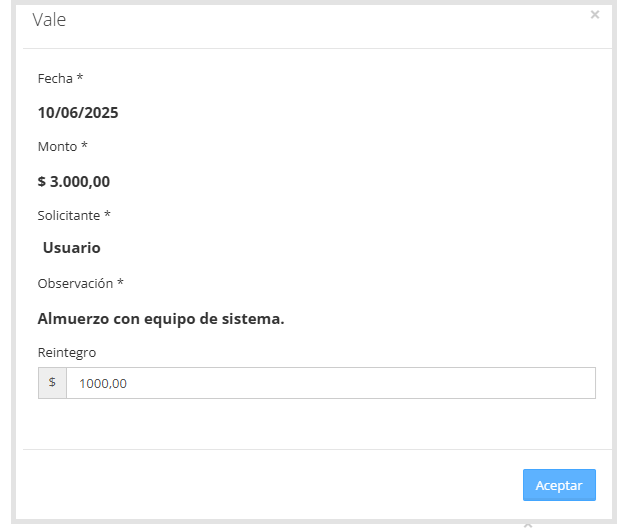
Click Accept.
Alerts: The system may display the following alerts when the amounts between vouchers and expenses do not match. These alerts prevent saving or submitting the petty cash until the difference is resolved:

The first icon indicates that money is yet to be received, as the associated expense is less than the amount delivered to the employee.
The voucher must be edited and the reimbursement amount entered.


The second icon appears when the expense exceeds the amount delivered in the voucher.
The expense icon must be clicked to confirm that the money was delivered to the employee.
As shown in the image below.


Save: To save the changes made to the petty cash expense report, click the "Save" button.
Submit petty cash expense report: Once all expenses and reimbursements have been entered, the expense report must be submitted for approval using the green "Submit Petty Cash" button located in the bottom right corner.
Petty cash replenishment:
When the petty cash is created, or each time the company performs a replenishment, the custodian must confirm receipt of the money.
To do so:
Go to Travel & Expenses "T&E" > Petty Cash > Replenishments.
The following screen will be displayed.
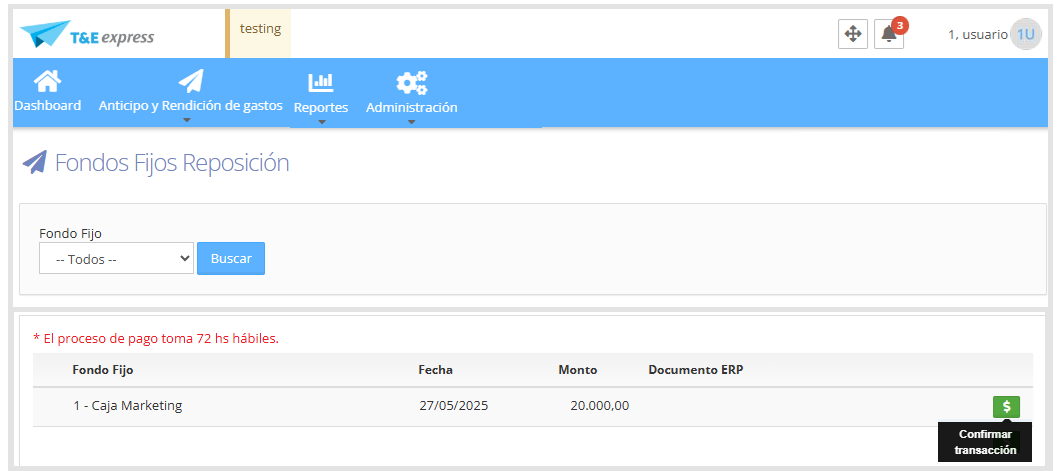
Click the button

The system will display an alert to confirm the replenishment.

T&E Express has a specific configuration that allows replenishing only part of the petty cash and not the total. This option is not enabled by default and must be requested from the T&E Express technical team.
This configuration is used when it is not necessary to replenish the full amount, either because there is an unused balance or because a more precise control of the available funds is needed.
Once enabled, the replenishments screen will include a field called Amount to Replenish, where the custodian can manually enter the amount they wish to replenish.
As shown in the image below.
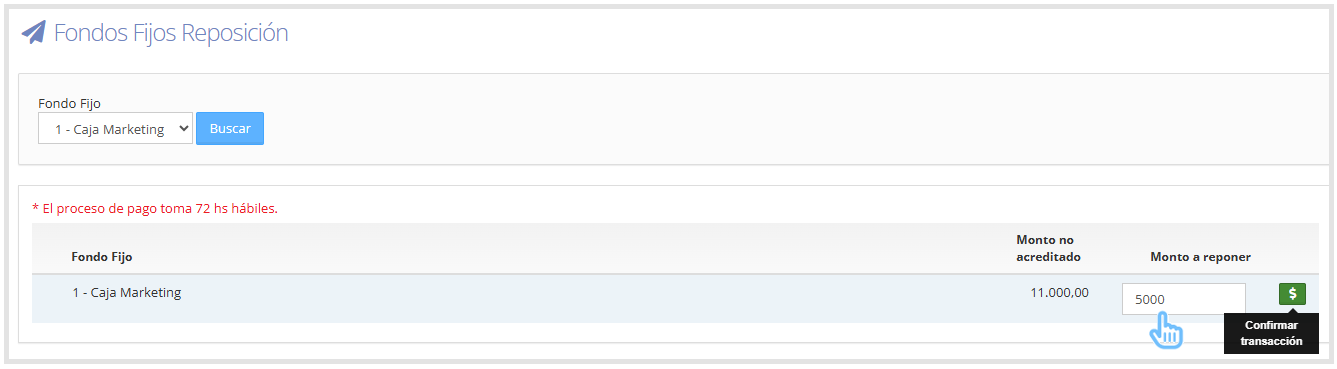
Important: Entering an amount greater than the Expense reports unaccredited amount is not allowed. If this occurs, the system will display an alert: "The amount cannot be greater" and will not allow the replenishment to proceed.

Click the button

The system will display an alert to confirm the replenishment.