The Breakdown feature allows you to organize and detail separate items that correspond to the same expense, giving you greater control and clarity over your expense reports and ensuring each expense is correctly recorded.
Important: if the Breakdown tab is not visible, contact the T&E Express technical team.
Expense reports with breakdowns: Once all required fields marked with (*) have been filled in on the Detail tab of the expense form, you will be able to perform the breakdown.
For more information on how to create an expense report, refer to the following guide.
Create expense report
When you click on the Breakdown tab, located next to Detail, the following screen will appear.
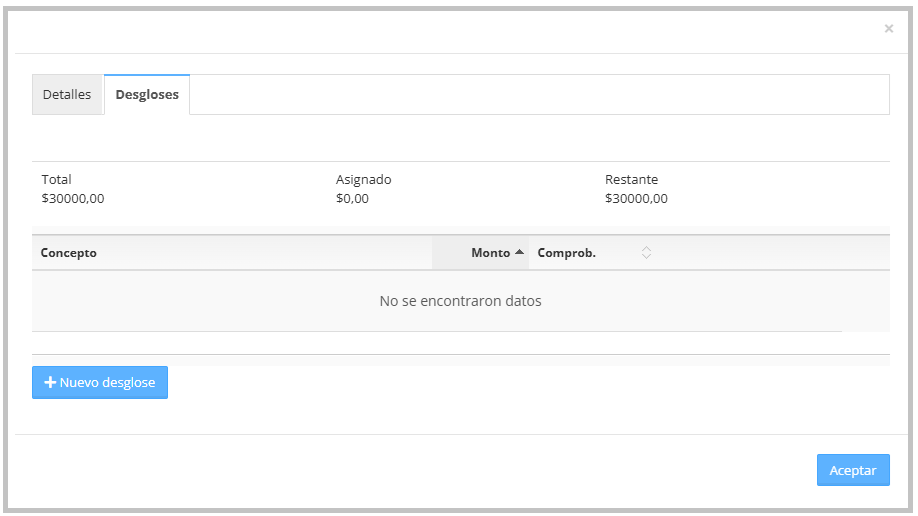
On this screen you will see the following:
Total: total amount of the expense previously entered in the Detail tab.
Assigned: indicates the sum of the amounts already entered in the breakdown items.
Remaining: difference between Total and Assigned; it must reach 0.00 for the breakdown to be considered complete.
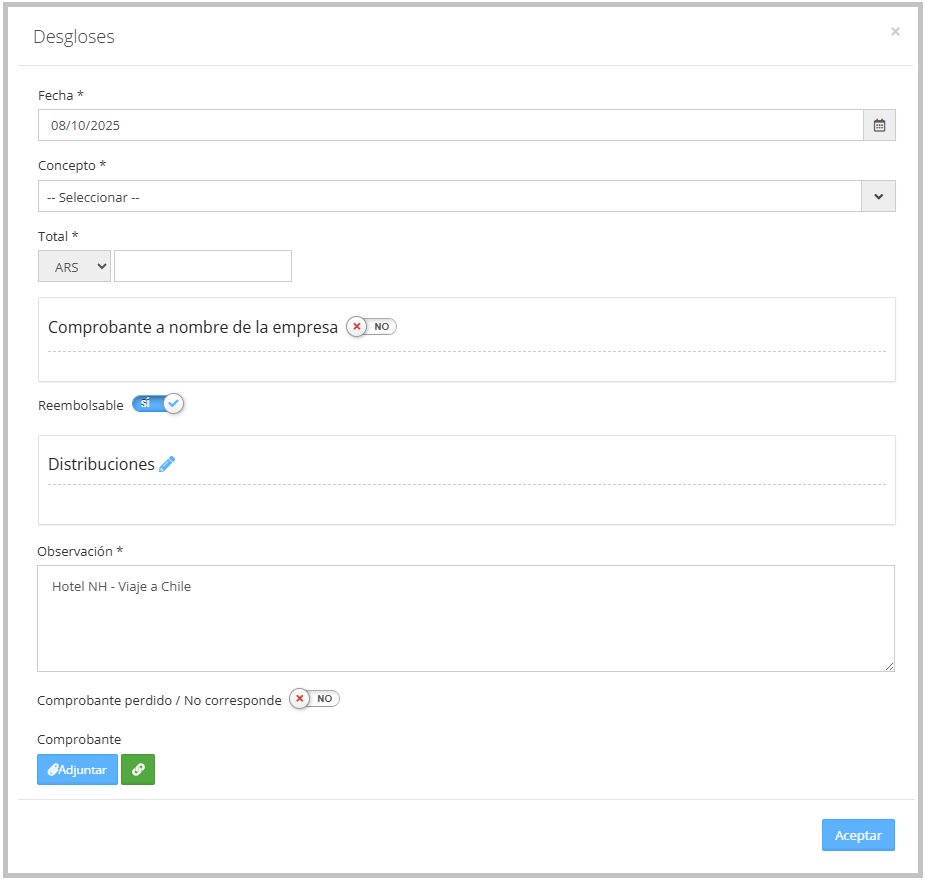
When you click New Breakdown, a form will open to fill in the data as needed.
Fields marked with (*) are required and cannot be omitted.
The system automatically fills in the Date and Comment fields with the information entered in the Detail tab.
For cash expense reports, the date is editable.
For corporate card expense reports, the date cannot be modified.
The currency type field in the breakdown is filled in automatically based on the Detail tab data and cannot be modified.
Taxes: if taxes were already registered in Detail and the user tries to add them again in the Itemizations, the following alert will appear:
"The taxes entered in Details will be removed. Do you wish to continue?"

If the user confirms, the taxes previously registered in Detail will be assigned to the Breakdown. Once in the Itemizations, these taxes can be edited as needed, ensuring they are correctly recorded and avoiding duplicates.
Attendees: if the category selected in the Itemization allows attendees, the attendees' details can be registered.
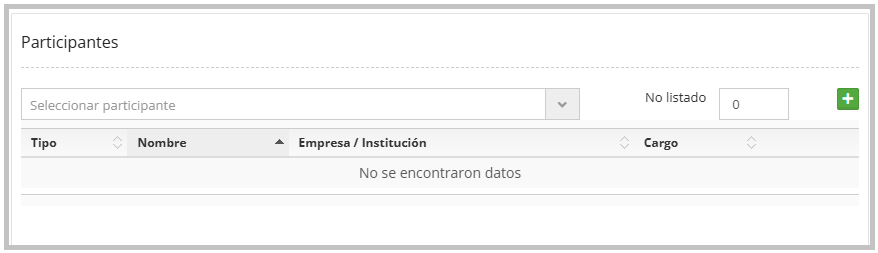
If attendees have already been registered in the Detail tab,
clicking the edit icon (blue pencil) will trigger the following alert:
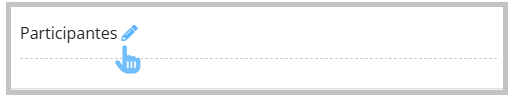
"The entered taxes in Details will be deleted. Do you want to continue?"

If the user confirms, attendees can be registered in the Itemization.
For more information on attendees configuration, refer to the Categories guide.
Distributions: If this configuration is enabled, you will be able to distribute expenses across different cost centers from the Itemization.
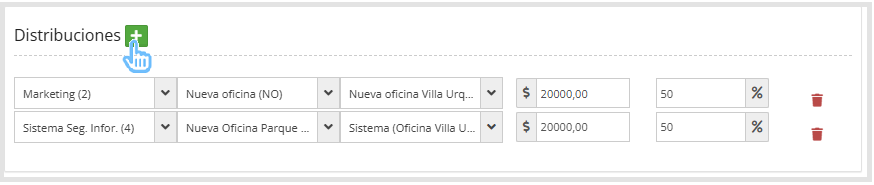
If distributions have already been registered in the Detail tab
clicking the edit icon (blue pencil) will trigger the following alert:

"The entered taxes in Itemizations will be deleted. Do you want to continue?"

For more information on Distributions configuration, refer to the Distributions guide.
The completed itemizations will be displayed as follows:
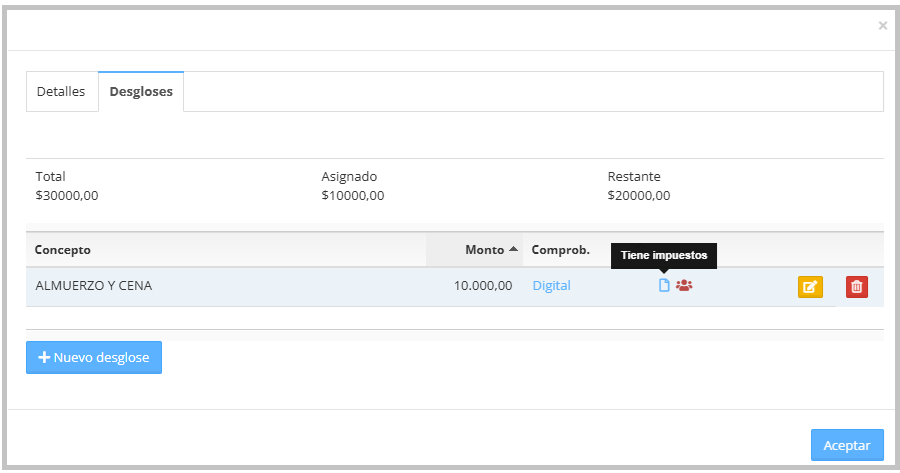
Itemizations can be saved partially, allowing you to complete the remaining items at a later time.
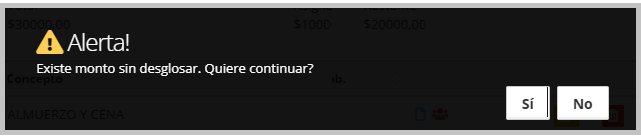
When leaving the Itemization screen by clicking Accept without having completed all itemizations, the system will display the following alert:
"There is an undisclosed amount. Do you want to continue?"
In the expense report detail, a red icon will appear indicating that the full amount has not yet been itemized.
Hovering over the icon will show the pending amount to be itemized.

Clicking on the icon will redirect you to the Itemization screen.
Once the Itemization is fully completed, the system will automatically update the Total, Assigned, and Remaining values, as shown below.
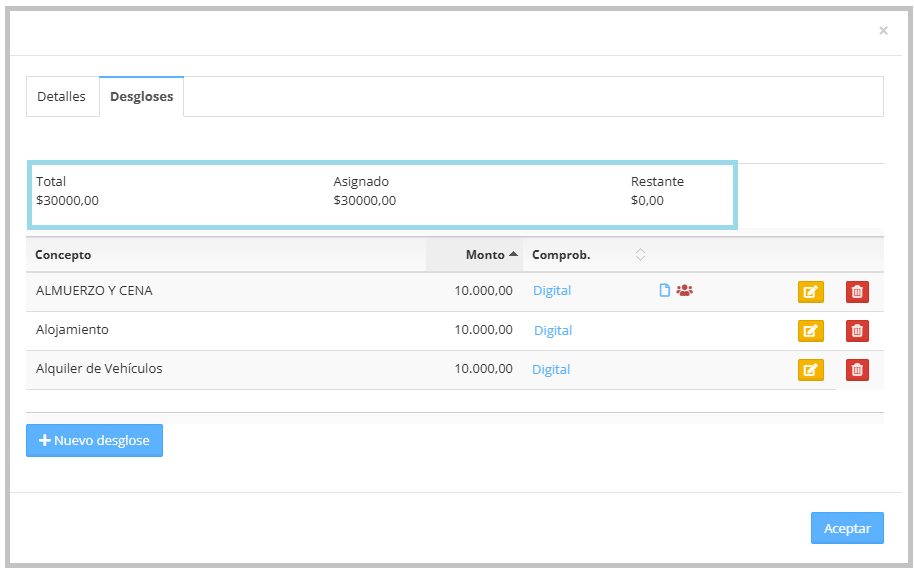
Items added in the Itemization can be edited or deleted; these actions are found on the right side of each item.
Once all itemizations have been correctly completed, a blue icon will appear in the expense report detail, indicating that the itemizations were successfully completed.
A smaller red icon inside the blue icon signals that additional actions were carried out within the Itemization, such as taxes, attendees, distributions, etc.
In the expense report detail, all categories added will also be displayed, indicating that the expense report is ready to be submitted.