When you review an expense report, T&E Express marks the expenses you've already reviewed, so you know which ones are left. You can also save your progress and finish the review later.
Scope:
Expense report types: cash, corporate card and petty cash.
Enabled profiles: Finance, Treasury and Accounting.
Expense report status: Pending Finance.
Open the expense report you need to review.
In the row of the expense you want to review, click the magnifying glass (the blue button on the right side of the row). The expense form opens. Check the information.
Click Accept at the bottom right of the form. The form closes.
Check the expense table: the expense you reviewed now has a blue stripe on the left.
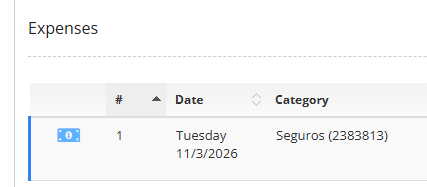
Repeat these steps for each expense. The expenses without a blue stripe are the ones you still need to review.
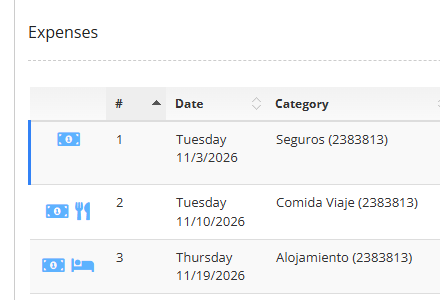
Important: if you close the form with the X instead of Accept, the expense isn't marked.
If you don't finish reviewing all the expenses, save your work before you leave.
At the bottom right of the screen, click Save. It's to the left of the Approve button.

You can now leave the expense report. It isn't approved: it stays in Pending Finance.
When you want to continue, open the expense report again. You'll see the expenses you already reviewed, with their blue stripe, and the changes you made.
Important: if you leave without clicking Save, what you reviewed in that session is lost.
If someone else on your team reviewed expenses in the same expense report and saved their progress, you'll see it too.
Hover over an expense with a blue stripe. A bubble with the initials of the person who reviewed it appears below the expense type icon.
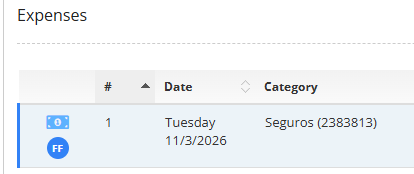
Hover over the bubble. It shows the name of the person who reviewed it and the date and time of the last review.
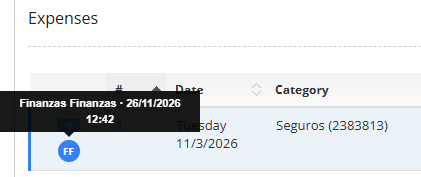
Important: you only see reviews that were already saved with the Save button. It doesn't show in real time who is reviewing the expense report right now.
If more than one person reviewed the same expense, you'll see the details of the last one.
Once you've reviewed all the expenses, click Approve, as usual.
Once the expense report is approved, the blue stripes, the initials and the Save button are no longer shown.
To learn more about how to approve an expense report, click the following link: Approve expense report
I closed an expense and it wasn't marked. Why?
You closed it with the X. Open it again and close it with Accept.
If I reopen a marked expense and close it with the X, is it unmarked?
No. A marked expense stays marked.
Can I unmark an expense manually?
No.
Does Save approve the expense report?
No. It only saves your progress. To approve it, click Approve.
I can't see the Save button. Why?
It only appears for the Finance, Treasury and Accounting profiles, and when the expense report is in Pending Finance status.