Favorites let you save the distributions you use most often (cost centers, distribution fields, and percentages) and apply them again with a single click.
With favorites, you can:
Save the distribution currently loaded in the expense.
Apply a saved favorite to an expense.
Edit an existing favorite or create a new one based on another.
Set one as default, so it loads automatically every time you create an expense.
Delete favorites you no longer use.
This feature is available in the expense Detail and in the Breakdown.
Favorites are available to users who have the “Can submit expenses to other cost centers” option enabled in their profile. If you don’t see the favorites button, contact your company’s administrator.
Favorites are personal: each user can only see and manage their own.
If the “Can submit expenses to other cost centers” option is disabled in your profile: the buttons are hidden, but your favorites are not deleted. When the option is enabled again, you’ll get them back exactly as they were.
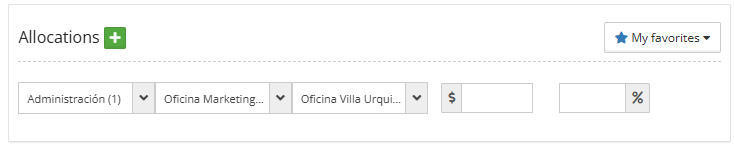
This is how the form looks the first time, before you’ve created any favorites:
Create a new expense.
To the right of the Distributions title, you’ll see the ★ My favorites ▼ button.
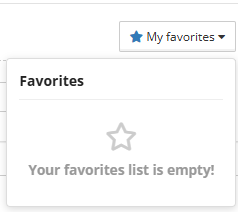
If you click ★ My favorites, the Favorites panel opens with an empty star and the message “Your favorites list is empty!”.
There's nothing to apply yet: the first step is to create your first favorite.
In the expense form, complete the distribution in the Distributions section:
Percentages: they must always add up to 100%.
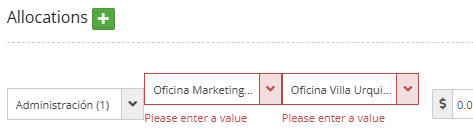
Cost centers and distribution fields: depending on your company’s settings, you may need to complete all fields. If any are missing, the system highlights them in red.
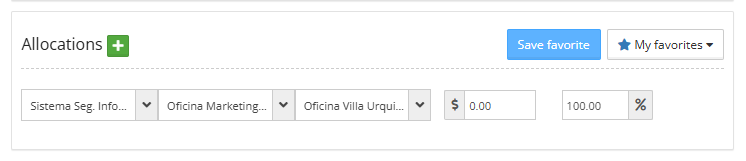
As soon as you change a distribution field, the Save favorite button appears. Click it: a window opens with the Favorite name * field.
Enter a name that helps you recognize it.
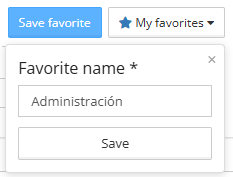
Click Save.
You’ll see the green alert “Favorite ‘[name]’ saved” in the top right corner.
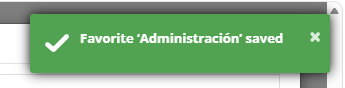
The favorite is added to your list as not default, and the Save favorite button is hidden until you change the distribution again.
What is saved and what isn’t
Saved: the cost center, the distribution fields, and the percentage of each line.
Amounts are not saved. If you had amounts entered, the favorite leaves them blank.
There’s no limit to the number of favorites per user.
The name is required. If you leave it blank, “Please enter a value” appears in red..
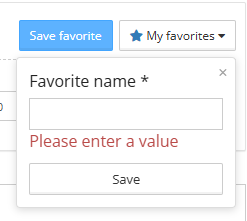
Up to 50 characters. Letters, numbers, spaces, hyphens (-), underscores (_), and periods (.) are allowed.
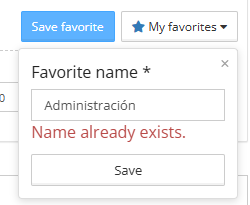
The name must be unique. Duplicate names aren’t allowed, regardless of uppercase, lowercase, or spaces at the beginning or end. If the name already exists, the message “Name already exists” appears in red.
Once you’ve saved at least one favorite, clicking ★ My favorites opens the Favorites panel. At the top it shows the legend “★ = default favorite · preloaded when the form opens”, and below it, each favorite with:
The star: filled (★) if it’s your default favorite; empty (☆) if it isn’t. Click it to set or unset it as default.
The name of the favorite.
The number of lines in the distribution.
The Delete button (trash icon).
The favorite applied to the current expense is highlighted in the list, so you can tell which one you’re using.
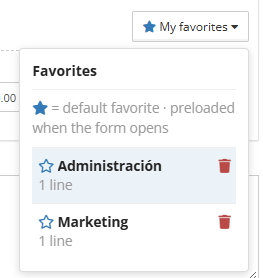
Click ★ My favorites to open the panel.
Click the line of the favorite you want to use (anywhere except the star or the delete icon, which have their own actions).
The favorite’s lines are loaded into Distributions and the panel closes.
Important: if the section already had lines loaded, the favorite replaces them.
Favorites are edited from the expense form itself:
Apply the favorite you want to change.
Make your changes in Distributions: add, remove, or edit lines. When you make a change, the Save favorite button appears again.
Click Save favorite. The window opens with the favorite’s name already filled in.
Choose what to do and click Save:
Keep the same name: the existing favorite is updated with your changes. Message: “Favorite ‘[name]’ updated”.
Change the name: a new favorite is created with your changes, and the original stays the same. Message: “Favorite ‘[name]’ saved”.
The default favorite loads automatically every time you open a new expense in Detail or create a new Breakdown. You can only have one default at a time.
To set it: in the Favorites panel, click the empty star (☆) next to the favorite. The star fills in (★). If you had another default, it’s unset automatically.
To unset it: click the filled star (★). You’ll have no default favorite.
No default: when you open a new expense, your usual cost center is shown, as always.
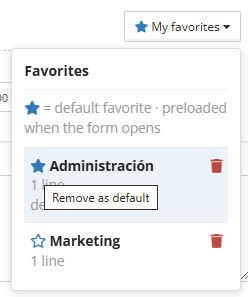
New favorites are saved as not default.
Open the ★ My favorites panel.
Click the Delete button (trash icon) next to the favorite.
The message “Are you sure you want to delete?” appears. Click Yes to delete it or No to cancel.

If you delete your default favorite, the system doesn’t assign another one: you’ll have no default until you set one.
Everything works the same in the expense Detail and in the Breakdown: saving, applying, editing, setting as default, deleting, and automatic preloading. The favorites list is the same in both places, so a favorite saved from Detail can also be used in a Breakdown, and vice versa.
To learn more about the Breakdown, click the following link: Expense Reports with Itemizations
I don’t see the ★ My favorites button. Why?
Your profile doesn’t have the “Can submit expenses to other cost centers” option enabled. Ask your company’s administrator to enable it.
Did I lose my favorites if that option was disabled?
No. They’re kept and will appear again when the option is re-enabled.
Can other users see or use my favorites?
No. Each user can only see and manage their own.
Why don’t I see the Save favorite button?
It appears when you change any distribution field. It’s hidden after you save or apply a favorite, and appears again when you change something in Distributions.
Does the favorite save the amounts?
No, only the structure and the percentages. Amounts are entered in each expense.
I applied a favorite and what I had entered was deleted.
That’s expected: applying a favorite replaces the existing lines.