No need to leave your cash advance to start reporting it. From its detail page, one click creates the expense report with the cash advance already selected. Fewer steps, less searching and more time for what matters.
Open your cash advance detail. You can do it in two ways:
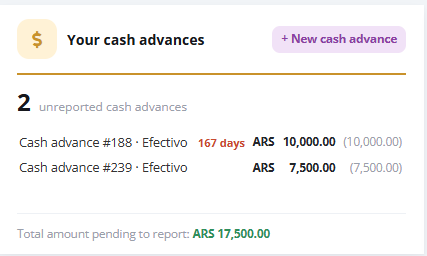
From the Dashboard: in the “Your cash advances” card, click the cash advance you want to report.
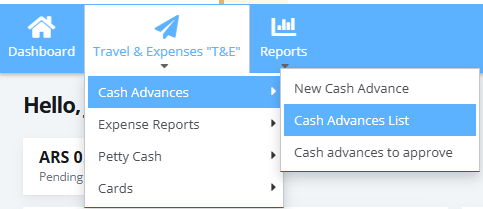
From the Cash Advance History: go to Cash Advances and Expense Reports > Cash Advances > Cash Advance History and open the cash advance in ‘To report’ status.
Click New expense report. If the cash advance is in ‘To report’ status and has an amount left to report, you’ll see the button right before Copy and Back.

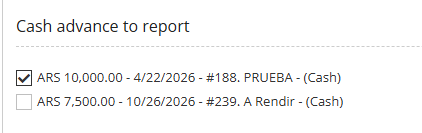
Check your selected cash advance. The New Cash Expense Report screen opens with your cash advance already checked in ‘Cash advances to report’.
Have other pending cash advances? They’re still on the list, so you can add them to the same expense report.
Complete and submit your expense report. Add your expenses as usual and submit it for approval.
Keep in mind
Already created an expense report with that cash advance and saved it as Draft? The button won’t be shown, but you can pick it up in two ways:
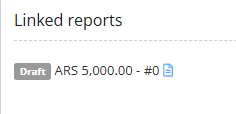
from Cash Advances and Expense Reports > Expense Reports > Expense Report History, looking for the report in Draft status, or from the cash advance detail, in the Related expense reports section, by clicking the document icon next to the report.
The button only appears when the cash advance is in ‘To report’ status and still has an amount left to report.
If your company allows partial reporting of cash advances, the button stays available after a partial expense report so you can report the remaining balance.
The detail shows the related expense report with its number, status and amount.
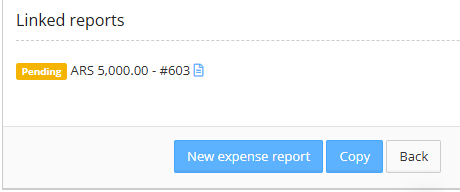
Once the cash advance has no amount left to report, the button is no longer shown, even if the cash advance is still in ‘To report’ status.
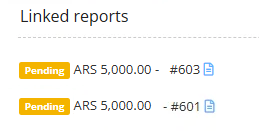
If your company requires advances to be registered in the accounting system (ERP) before they can be reported, the button won’t be shown until that registration is complete, even if the cash advance is in ‘To report’ status. If it’s urgent, check with your Finance team.
Prefer the usual way? It’s still available at Cash Advances and Expense Reports > Expense Reports > New Cash Expense Report.
Want to learn more?
Track your cash advances in the Cash Advance History guide.
Find out what each status means in Cash Advance Statuses.
Notifications: When you submit the expense report, your approver gets a notification to approve it.
No need to keep checking: T&E Express will notify you every time its status changes.