The Home Dashboard is the first screen you see when you enter T&E Express. It brings together in one place what you have pending, your wallet (card, cash advances and benefits) and your team’s spending reports. This guide walks through each module: what it shows and what you can do in it.
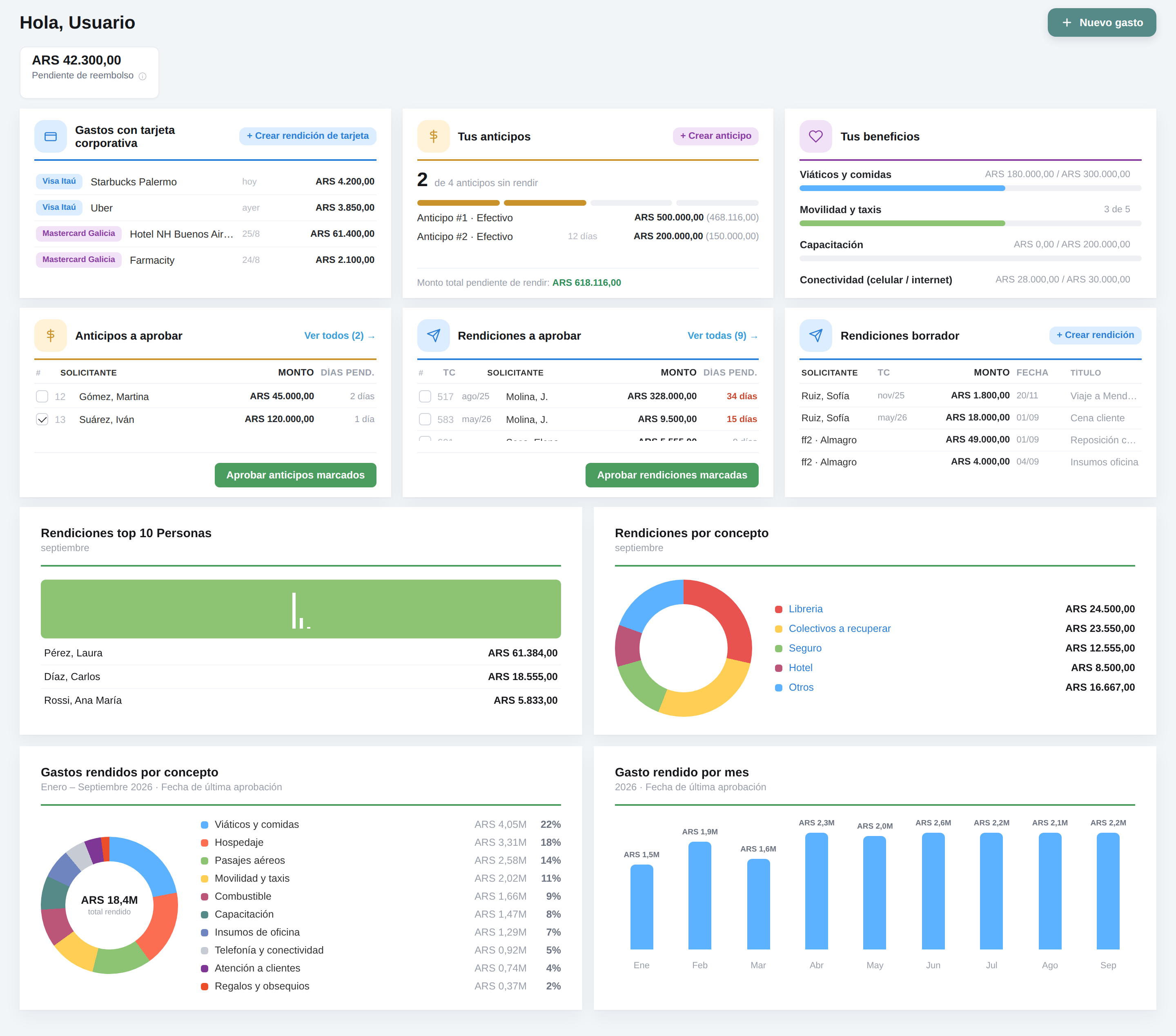

What it shows: the welcome message with your name, “Hello, {name}”. It is the first thing you see when you enter the Dashboard.
What you can do:
Click New expense to enter an expense without an expense report.
If your device supports MagicScan, the button has a down arrow and a menu opens to scan the receipt or enter it manually.
If your device does not support MagicScan, the button has no arrow and takes you straight to manual entry.
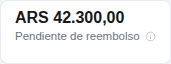
What it shows: the total amount of your expense reports that have already been approved and have not yet been reimbursed to you.
What you can do: check the amount. The information icon (ⓘ) explains how it is calculated.
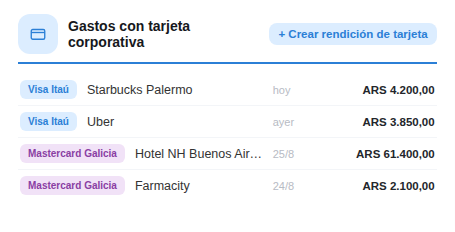
Groups what you have under your name: corporate card, cash advances and benefits.
What you can do:
Review which expenses you still have to report.
Click + Create card expense report to build the expense report with those movements. The button appears only if you have the “New card expense report” permission.
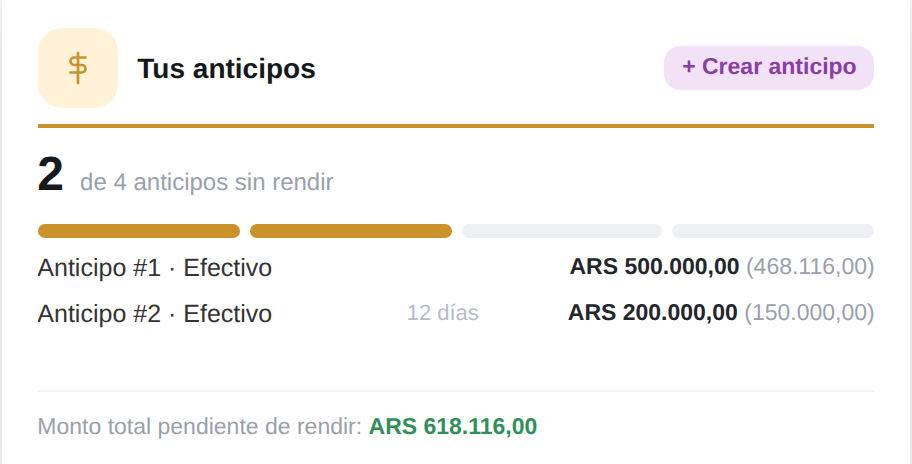
What it shows: how many cash advances you have not yet reported.
If your company has configured a limit, you see “X of Y cash advances not reported” with a segmented bar.
If there is no limit, you see “X cash advances not reported”.
If your company allows partial reporting of cash advances, the Total amount pending to report appears at the bottom.
What you can do:
Click a cash advance to see its detail.
Click + Create cash advance to go to Cash Advances > Request cash advance.
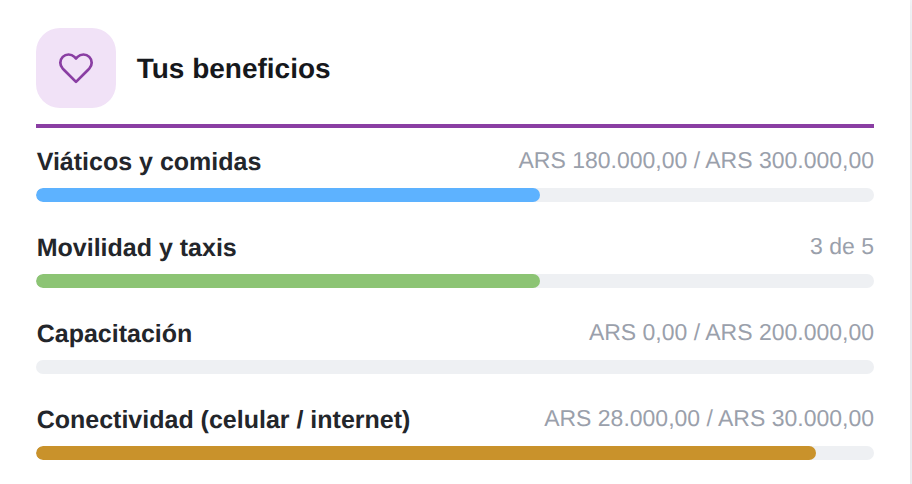
What it shows: the usage of each benefit assigned to you, with a progress bar.
Benefits by amount: “ARS X / ARS Y” is shown.
Benefits by quantity: “N of M” is shown.
If a benefit has both an amount and a quantity, a single bar is shown: the one closest to being used up. A short note clarifies which one it is.
What you can do: check how much you have left of each benefit before entering an expense.
These are the action modules: what requires something from you.
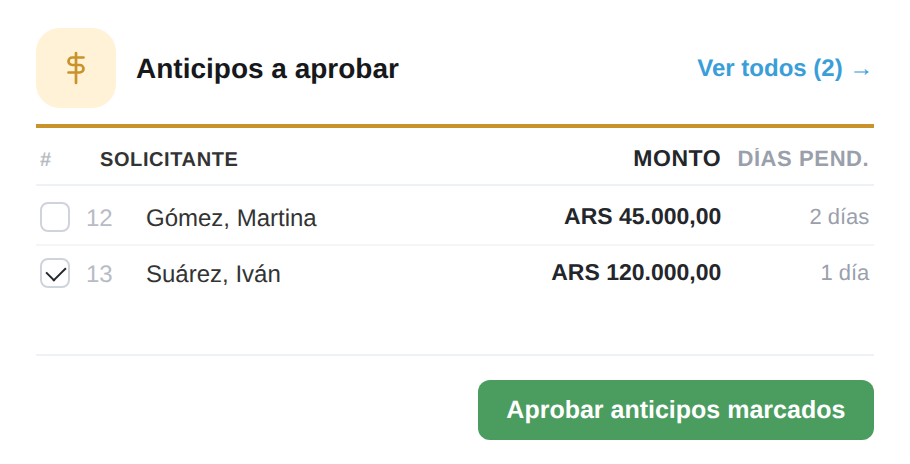
What it shows: the cash advances of the people you are in charge of that are waiting for your approval, with requester, amount and days elapsed. From 10 days on, the number is highlighted in red and bold.
What you can do:
Click a row to open the cash advance detail.
Check one or several and approve them with the green Approve button, which appears fixed at the bottom of the module only when at least one is selected.
Click View all (N) → to go to the full history.
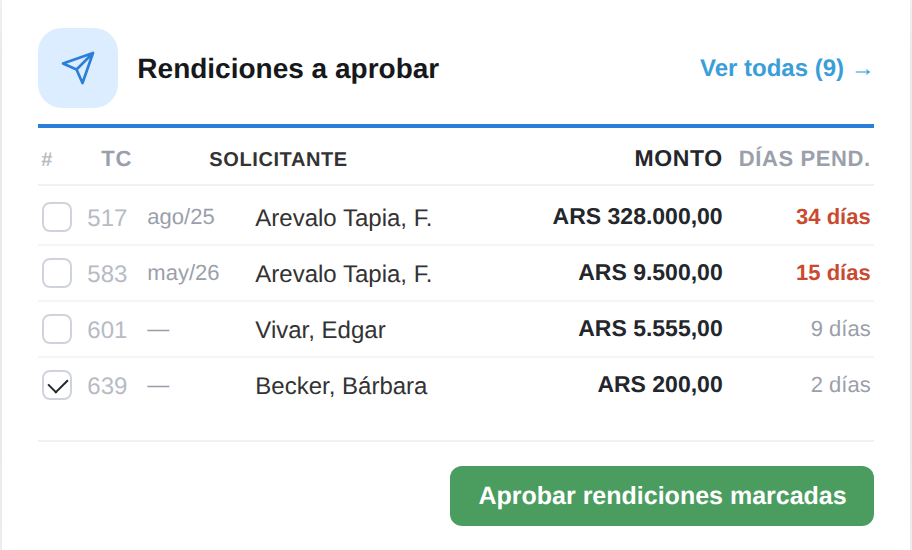
What it shows: your team’s expense reports pending your approval, with the same days scheme and red highlighting.
What you can do: the same as in Cash advances to approve: open the detail, approve in bulk with the green button or go to View all (N) →.
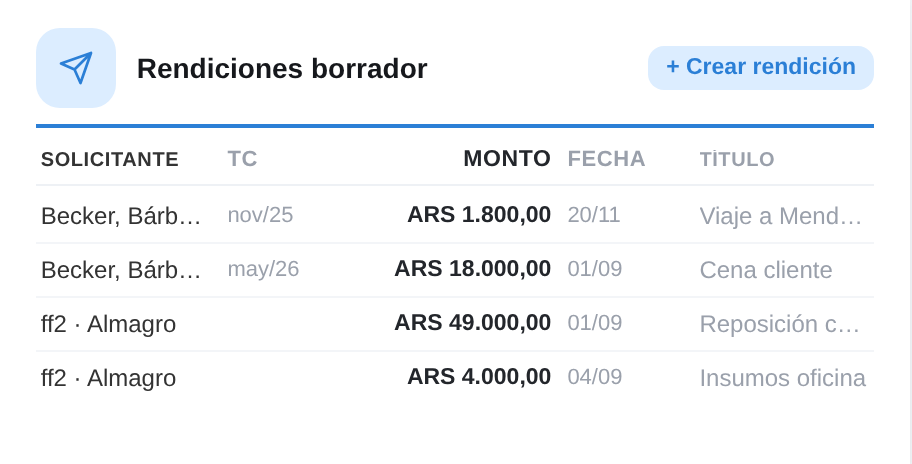
What it shows: the expense reports you started and have not submitted yet, with Requester, TC (corporate card), Amount, Date and Title.
What you can do:
Click a row to resume the expense report.
Click + Create expense report to go to Expense Reports > New Cash Expense Report.
Empty states: if nothing is pending, the module shows a solid-colored panel instead of a list. It is amber for cash advances and light blue for expense reports.
Four charts for your team in charge. They are recalculated once a month: a month is added when the next one begins. If there is no data, the chart shows “No information available”.
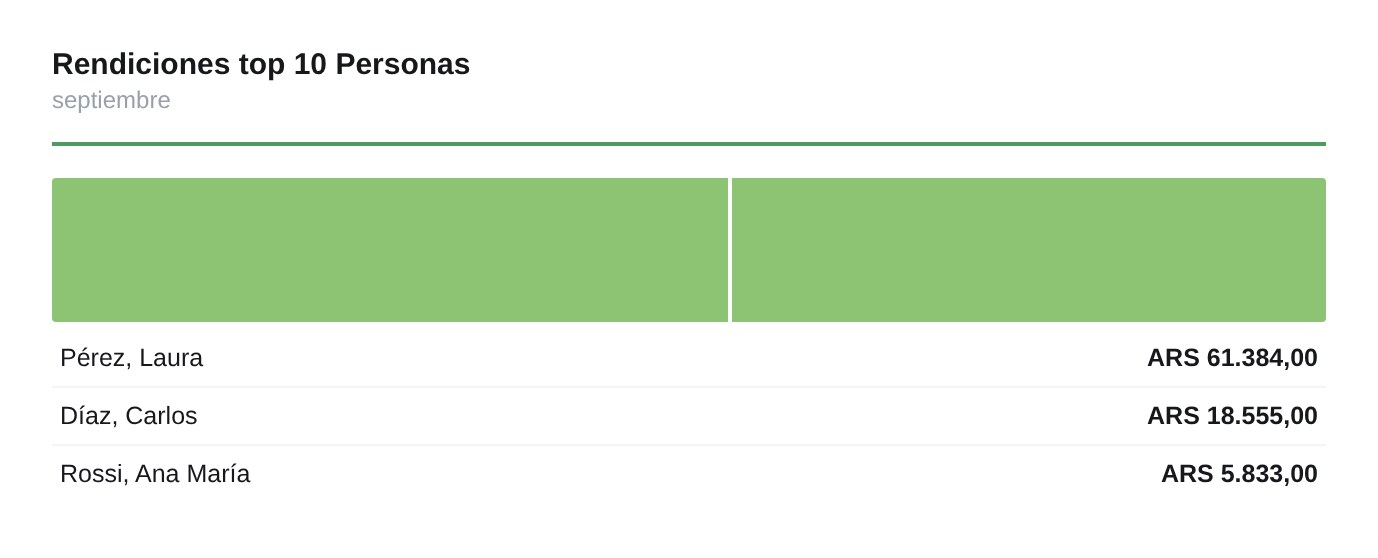
What it shows: the ranking of the 10 people with the highest amount reported in the month, with their amount.
What you can do: click a person to see their expense reports.
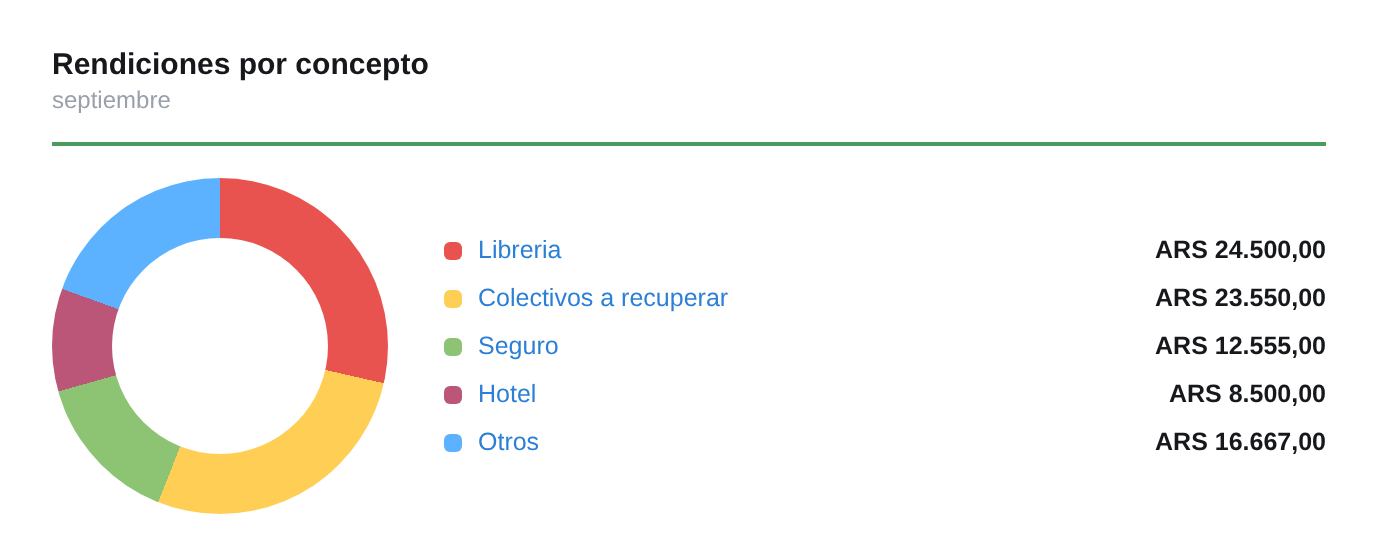
What it shows: how the amount reported in the month is split among categories, in a donut chart with its legend.
What you can do: click a category to open the Expenses report with the data behind it.
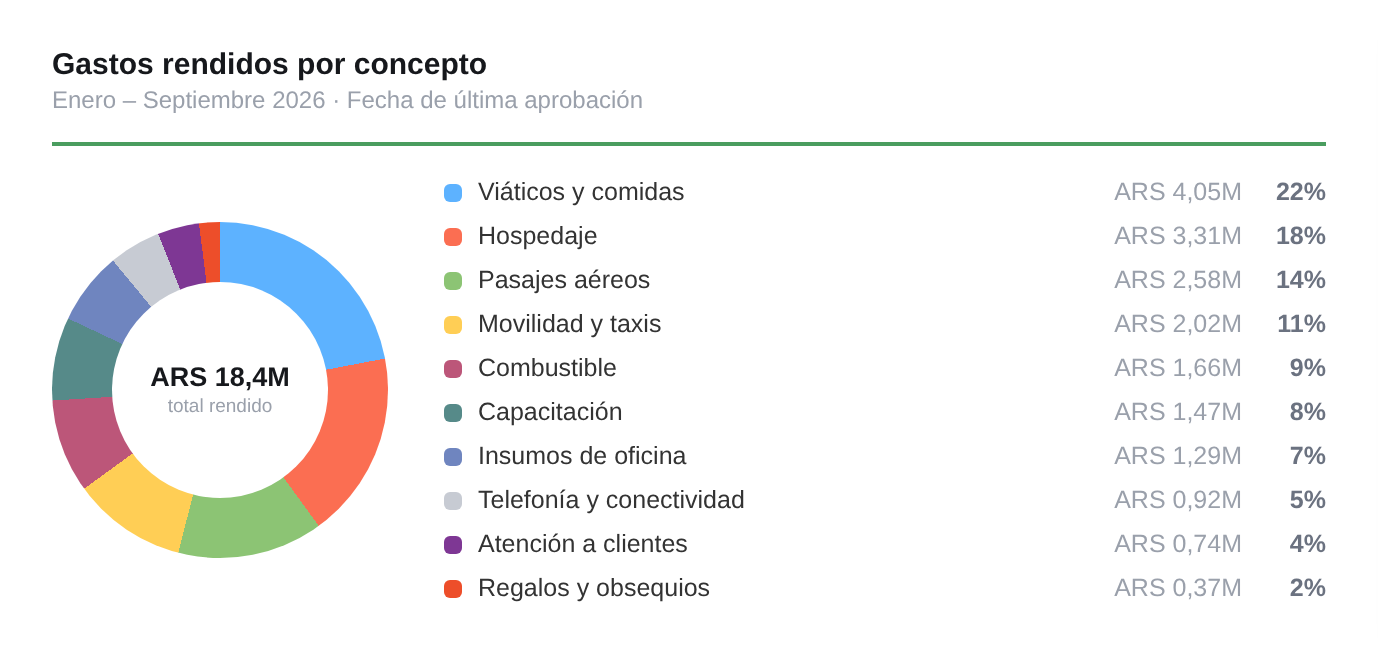
What it shows: a donut with the 10 categories with the highest reported spending, from January 1 to the last closed month, with the exact amounts. The subtitle shows the period and that dates are taken by Last approval date.
What you can do: click a category to open the Expenses report already filtered by category, period, team in charge and “Reported” status.
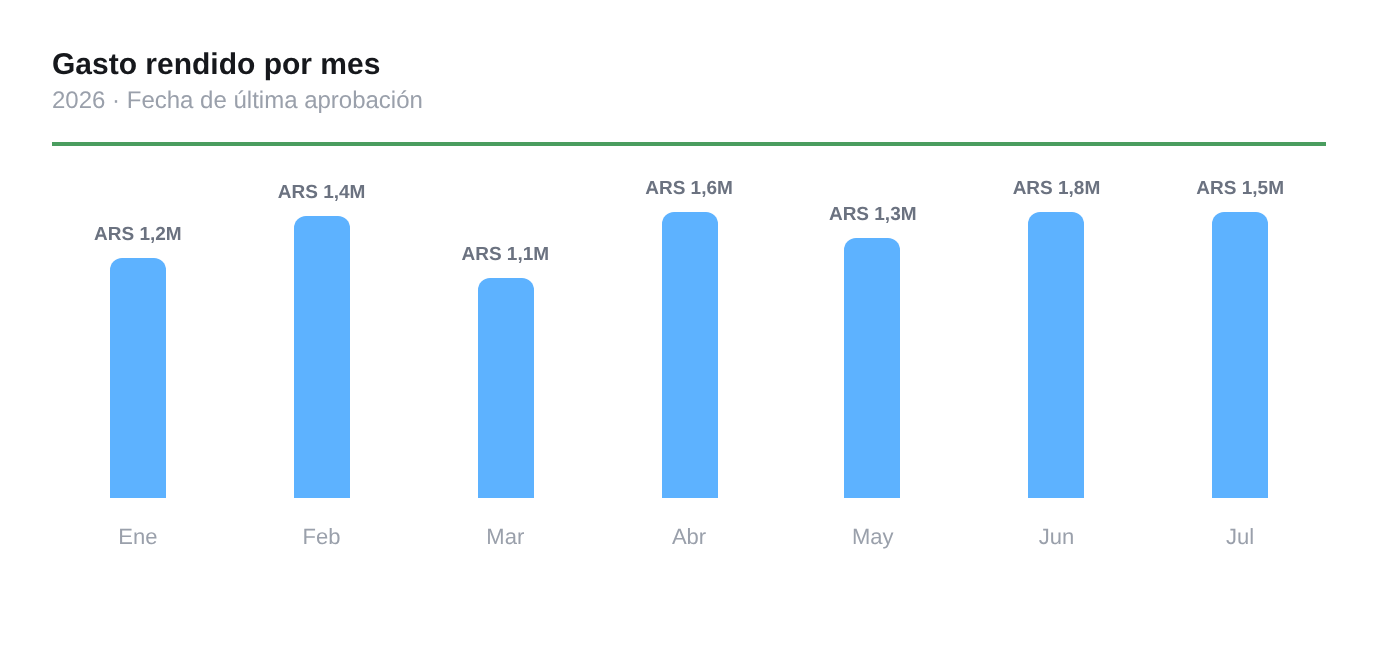
What it shows: one bar for each closed month of the year, with the amount reported. The subtitle shows the year and the Last approval date. In January it shows the 12 bars of the previous year, and from then on it fills in month by month.
What you can do: click a month to open the Expenses report filtered by that month.
Urgent days: from 10 days of waiting, the number is shown in red and bold.