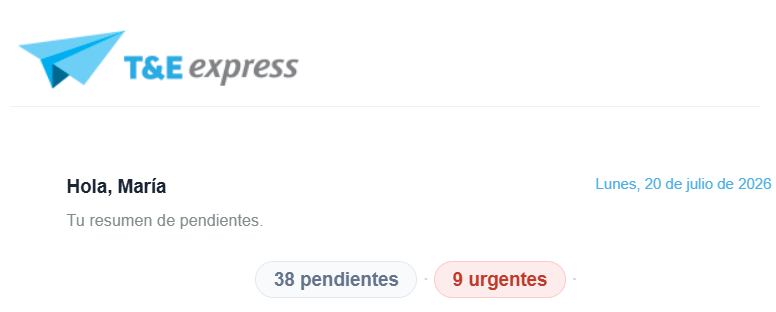
T&E Express automatically sends you an email every Monday at 9:00 AM (GMT-0) with a summary of all items that require your attention. If you don't have any pending items that day, you won't receive any email.
The email shows two indicators at the top: the total number of pending items and how many of them are delayed.
Report sections
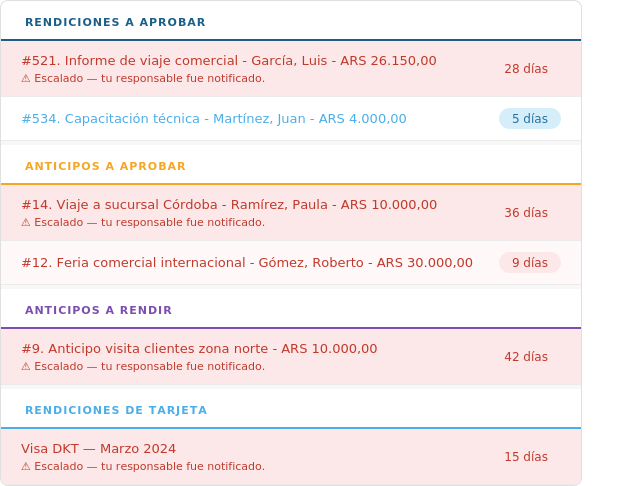
The content is organized by pending item type. Only sections that have active items that day are shown:
Expense Reports to Approve — expense reports submitted by your team members that are waiting for your approval.
Cash Advances to Approve — cash advances submitted by your team members that are waiting for your approval.
Cash Advances to Report — cash advances you received that you haven't reported yet.
Card Expense Reports — corporate card expenses from closed periods that haven't been reported yet.
How to access an item
Each item is a direct link. Clicking on it takes you directly to the detail within T&E Express.
What does the day counter indicate?
Each item shows a counter with the number of days it has been pending. The color indicates the urgency level:
Blue — between 0 and 6 days. The item is within a normal timeframe.
Red — between 7 and 13 days. The item requires prompt attention.
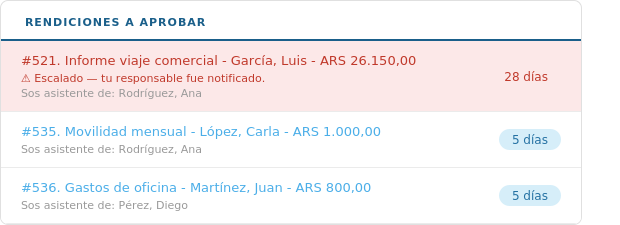
Dark red + "Escalated — your approver was notified." — 14 days or more without resolution. The system automatically notifies the next level in the user's approval chain, and every additional 7 days without resolution the escalation moves up one more level (day 21, 28, 35…). If the corresponding approver is set to Out of Office, the notice is sent to their substitute. The escalation is cumulative: everyone already notified at an earlier level keeps seeing the item in their email even as it continues escalating.
When the approval chain is exhausted (no titular approver or substitute is available), the item is sent to all users in the company who have the Finance Approver permission. At that point the escalation stops, even though the item remains pending.
This last step only happens once the entire chain is exhausted: if the chain has several levels, an item can take several weeks to reach Finance. If no user in the company has the Finance Approver permission, the item stops escalating and continues to be seen only by the users who were already receiving it.
This behavior can be turned off from General Preferences, with the option "Escalate pending alerts in the weekly summary" (enabled by default). If disabled, that company's items no longer escalate to higher approvers or to Finance: only the original responsible user sees them.
How many items are shown per section?
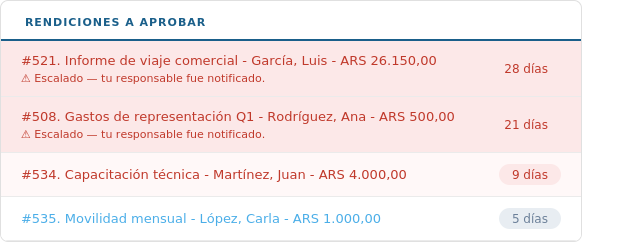
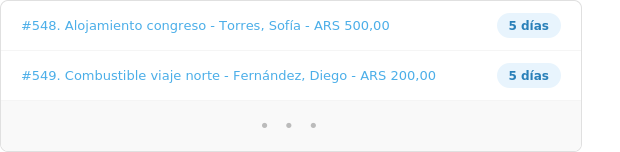
Each section shows up to 20 items, sorted from most to least days pending. If there are more than 20, an indicator appears at the end of the section.
If you're someone else's assistant
If you have the assistant role, you receive a single email that combines your own pending items with those of the person you assist. That person's items appear identified with the text "You are assistant for: [Name]."
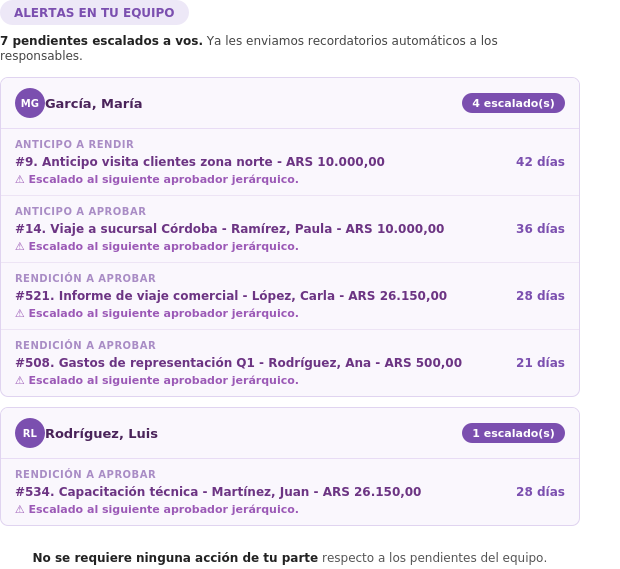
If you're a hierarchical approver: your team's alerts
When one of your team member's items has been unresolved for 14 days or more, it escalates to your level and appears in a separate section called Alerts on Your Team. In that case, the email includes a third indicator in the header with the number of escalated alerts.
This section groups the items by person and shows the pending type, the item, and the accumulated days. At the bottom, the text "No action is required on your part" appears regarding these items — the system has already sent automatic reminders to those responsible.