
What is WhatsApp?
WhatsApp is a free, widely used messaging app that lets you send messages and files from your phone or computer. You can use it simultaneously on your phone, on WhatsApp Web, or on the desktop app, with your conversations synced. It can be downloaded for Android and iOS, and used from WhatsApp Web and Desktop (Windows and macOS).
How do I use the Bot?
Go to the Settings menu, found by clicking on the logged-in user's name in the upper right corner of T&E Express.
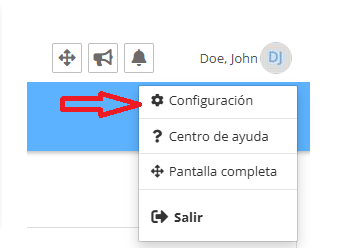
Once in Settings, select Connections.
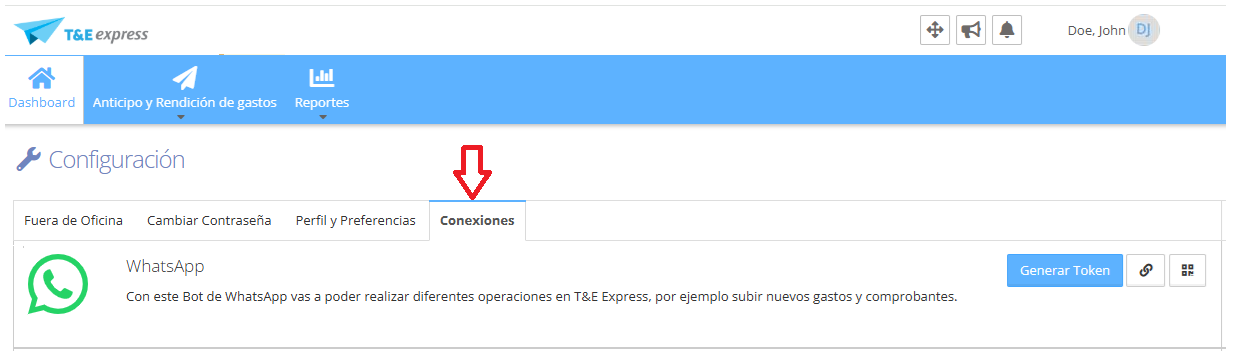
Click Generate Token to generate a unique code that will let you link your WhatsApp account with your T&E Express account.
In the WhatsApp section, click the link icon (🔗) to access the WhatsApp bot link, or the QR icon to scan the code from your phone and open the chat with the bot.
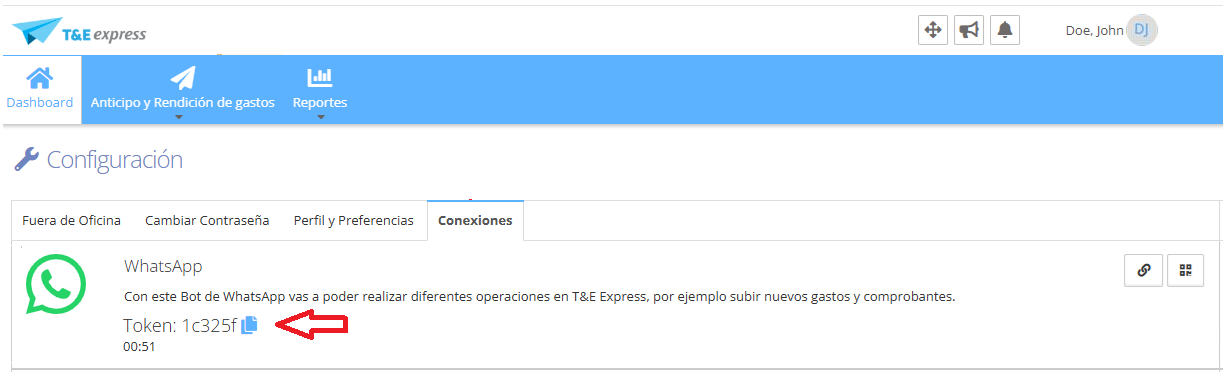
Send the generated code in the T&E Express Bot chat on WhatsApp.
If you scan the QR instead of the code, the chat opens with the code already written and you just need to send it.
The code is valid for 1 minute; if you don't link your account within that time, you'll need to generate it again.
The Bot will reply with a success message if the linking was completed correctly.
What can I do with the Bot?
Create new expense
The Bot guides you step by step and asks for the expense details: the receipt (file), the date, the amount, the currency, and a comment.
Once you complete everything, it creates the expense so you can later add it to an expense report.
Upload new receipt
The Bot asks you for a receipt. If the company has the Magic Scan service, it reads the receipt and automatically fills in the expense details. If not, it asks you for the rest of the information.
Send a file directly
If you send a photo or document of the receipt directly without selecting any option, the Bot automatically treats it as a new expense: it uses Magic Scan if available, or asks you for the remaining details.
View my information
Shows the information for your logged-in user in T&E Express.
Help
Returns the list of actions available in the Bot.
Cancel current operation
Stops whatever you're doing and returns you to the main options menu.
How do I unlink the Bot?
To unlink your account, go to the T&E Express Bot on WhatsApp and choose the Unlink user option in the Bot's menu. This removes the connection between your T&E Express user and your WhatsApp account.