Manual Upload: At the end of the period, download the file corresponding to each bank from the bank's platform.
Then, in T&E Express, go to Cash Advances and Expense Reports > Expense Reports > Card Statements
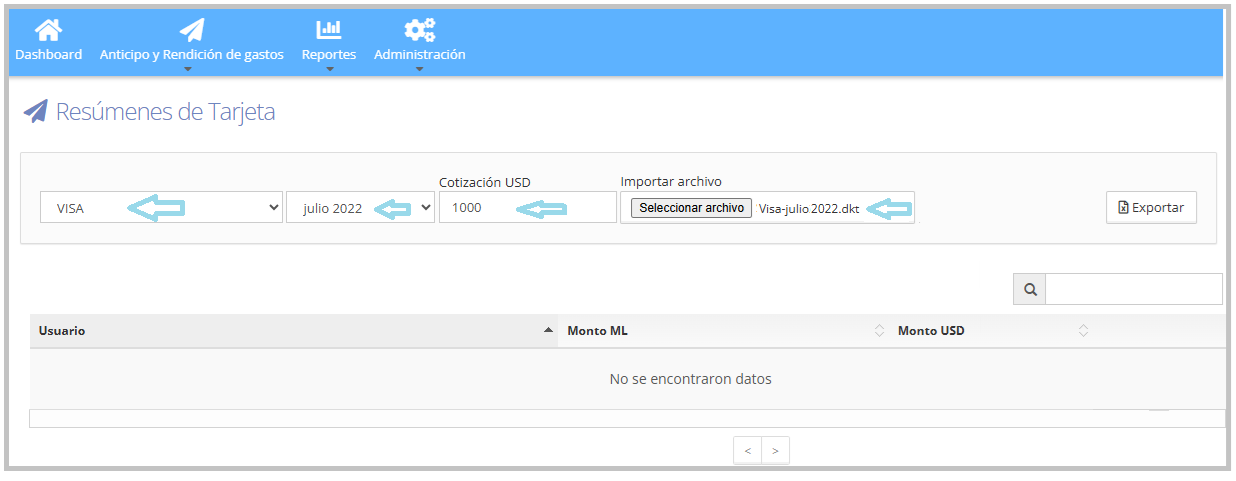
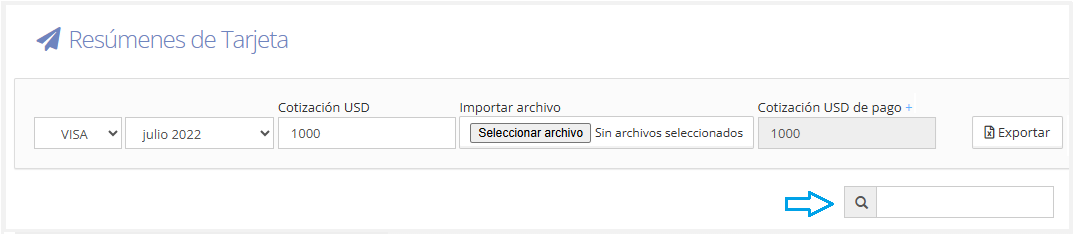
the following fields must be completed:
Select the corresponding bank.
Select the period.
Enter the card's closing exchange rate.
Import the downloaded file.
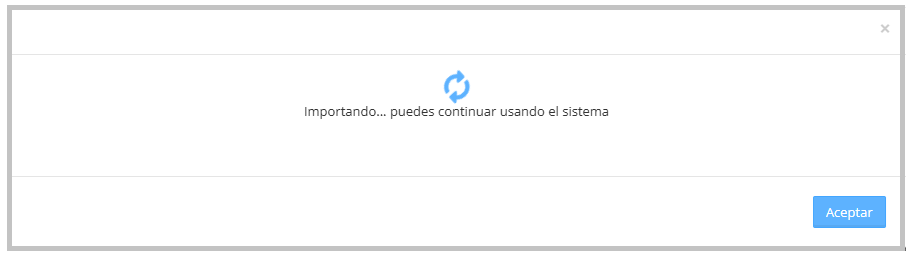
When saving, the system will show a screen informing that it is importing and that the user can continue using the system by clicking Accept.
To check the status of the process(es), the user has the following options available:
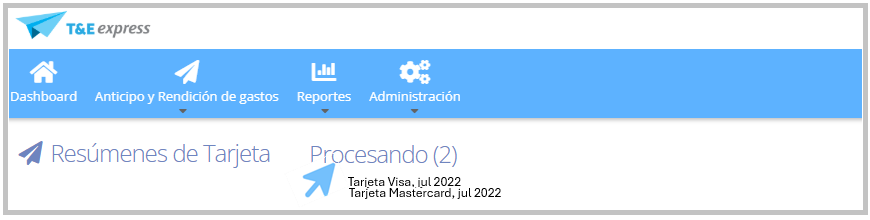
From the Card Statements screen:
You'll be able to see which statements are still in "Processing" status. At the top left, next to the "Card Statements" text, the "Processing" indicator will be shown along with the number of statements in that status. Hovering over this indicator will expand the list of corresponding cards.
From the notifications section:
The user will be able to check the status of the import process directly from the system notifications.
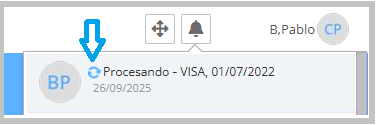
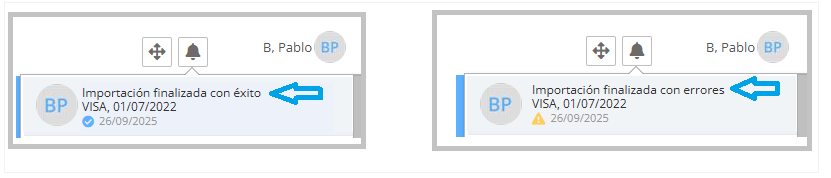
Once the "Processing" status is finished, the notification will show whether the import was completed successfully or with errors. In both cases, you'll receive an e-mail with the period and the card name, along with a direct link to the Card Statements screen. If the import had errors, the e-mail will include the corresponding detail.
On the Card Statements screen, you'll have the following information and functionalities available:
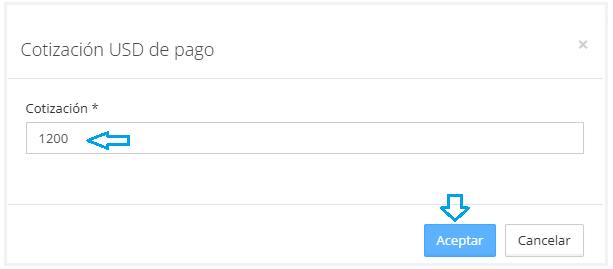
Payment exchange rate modification: once the import has finished, you can modify the payment exchange rate by clicking the blue + button.
Note: T&E Express will take both values (the card's closing exchange rate and the payment exchange rate) when migrating the information to the ERP.

Export: From this screen, you can export the complete statement information.

Search: allows you to locate specific information, such as first name, last name, or amounts.
List of users and amounts:
All users will be listed with their respective amounts, in the currency in which the expense was made.
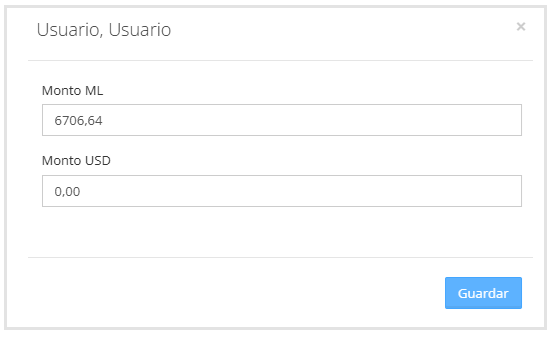
To the right of each row, the Edit option is available, which opens a box where you can modify the amount. Once the modification is made, you must click Save for the change to apply.

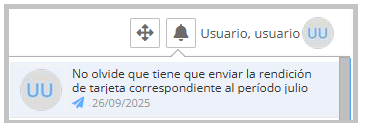
T&E Express automatically generates the expense report for each person who made expenses, sending an e-mail and showing a notification within the system so the user can review, validate, and submit their expense report.
Downloading files from banks
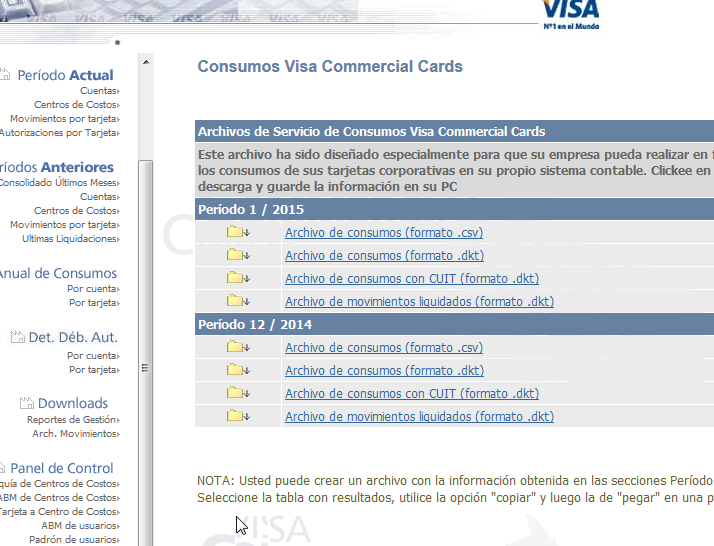
Go to Visa Commercial Cards (Argentina)
Go to the Downloads menu > Transaction files
Download the file for the corresponding period named "Archivo de movimientos liquidados," in .dkt format
Other banks or countries: we recommend checking the corresponding platform to obtain the official file type, or contacting the T&E Express team for assistance.
Downloading the file from YPF en Ruta
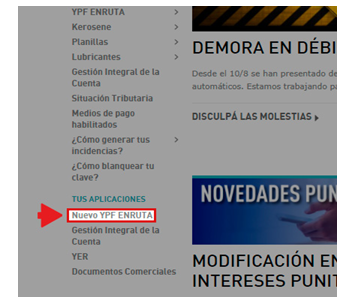
Go to the YPF Extranet
Select "Tus aplicaciones > Nuevo YPF ENRUTA"
From the main menu, in the Consumos section, you can view and export the detailed report of your contracts' consumption.

From here you'll view the transactions organized in a table, and you can select the one you need.
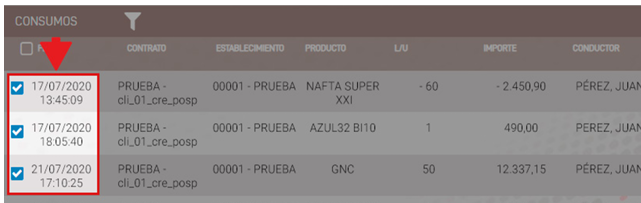
Click the Export button. This button will be enabled once you've selected one or more items in the table.

The system will generate the Excel file and you'll see a pop-up window where you can choose to open the report, save it, or cancel the action.

For more information on configuring YPF en Ruta in T&E Express, go to the guide YPF en Ruta
Reconciliation: Reconciliation allows you to import the statement downloaded from the bank, closing the period and adding to the system any expenses that were not automatically reported through the integration.
Go to Cash Advances and Expense Reports > Expense Reports > Card Statements
Select the corresponding bank.
Select the period.
Enter the card's closing exchange rate.
Import Reconciliation.
Click Reconcile.

When reconciling on the Card Statements screen, you'll have the following information and functionalities available:
Payment exchange rate modification: once the import has finished, you can modify the payment exchange rate by clicking the blue + button.
Note: T&E Express will take both values (the card's closing exchange rate and the payment exchange rate) when migrating the information to the ERP.

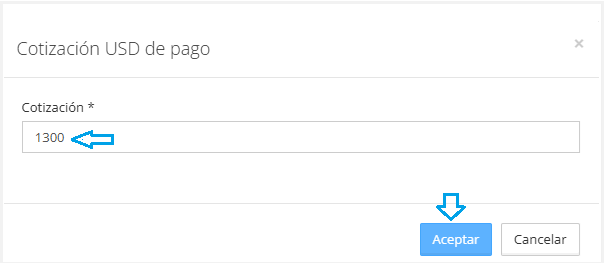
Export: From this screen, you can export the complete statement information.

Search: allows you to locate specific information, such as first name, last name, or amounts.
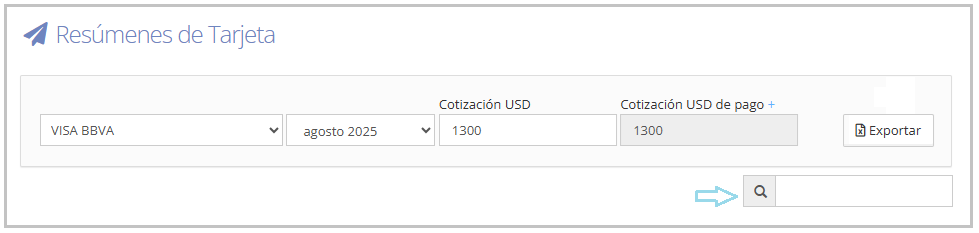
List of users and amounts:
All users will be listed with their respective amounts, in the currency in which the expense was made.
To the right of each row, the Edit option is available, which opens a box where you can modify the amount. Once the modification is made, you must click Save for the change to apply.
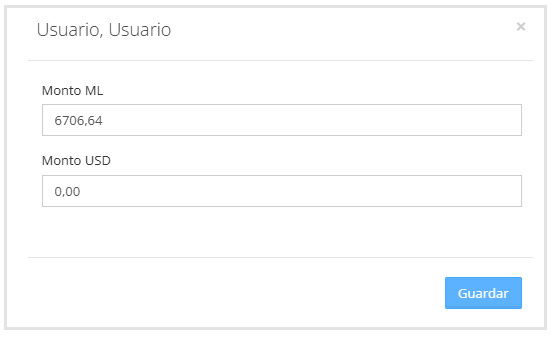
Corporate card "no template": When a card has the "no template" template, amounts must be entered manually for each user, or else imported from Excel.
Go to Cash Advances and Expense Reports > Expense Reports > Card Statements
Select the bank that was configured as "No template."
Select the period.
Enter the exchange rate.
To add amounts:
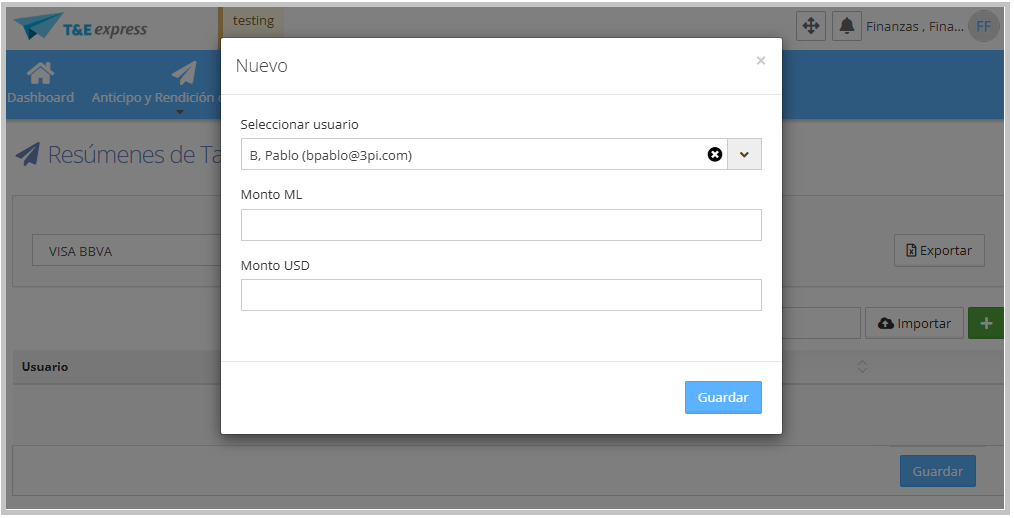
Click the + button to add a user.
A box will appear where you must complete:
User
Corresponding amount
Save
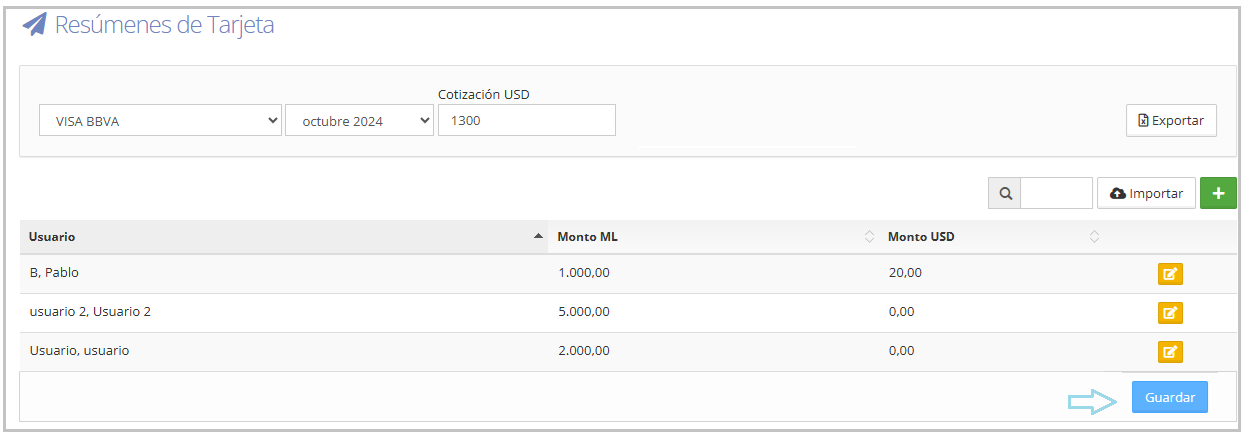
Once the corresponding data has been loaded, all users will be listed with their respective amounts.
To the right of each row, the Edit option is available, which opens a box where you can modify the amount. Once the modification is made, you must click Save for the change to apply.
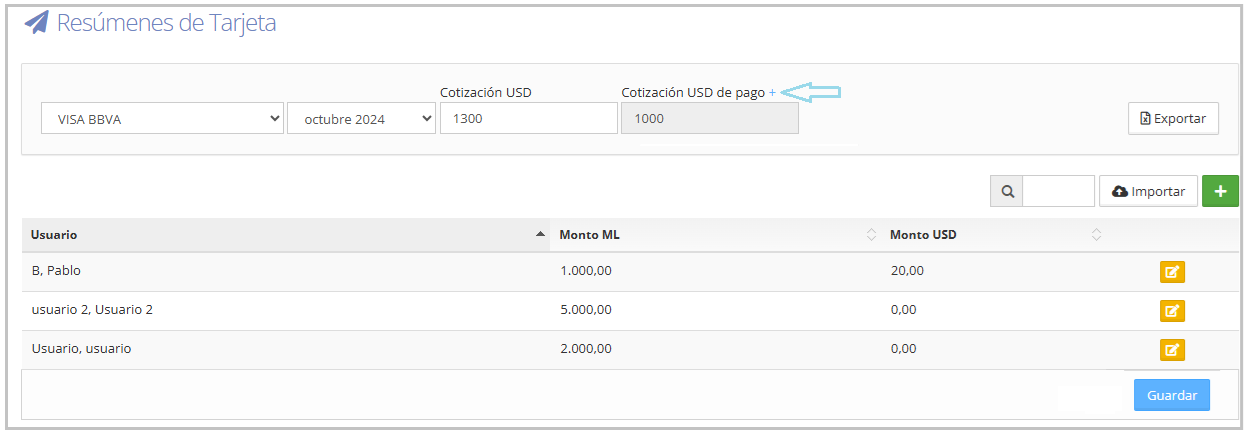
Upon saving, the list of registered users will appear, with the "Payment exchange rate" field — you can modify the exchange rate by clicking the blue + button.
Note: T&E Express will take both values (the card's closing exchange rate and the payment exchange rate) when migrating the information to the ERP.
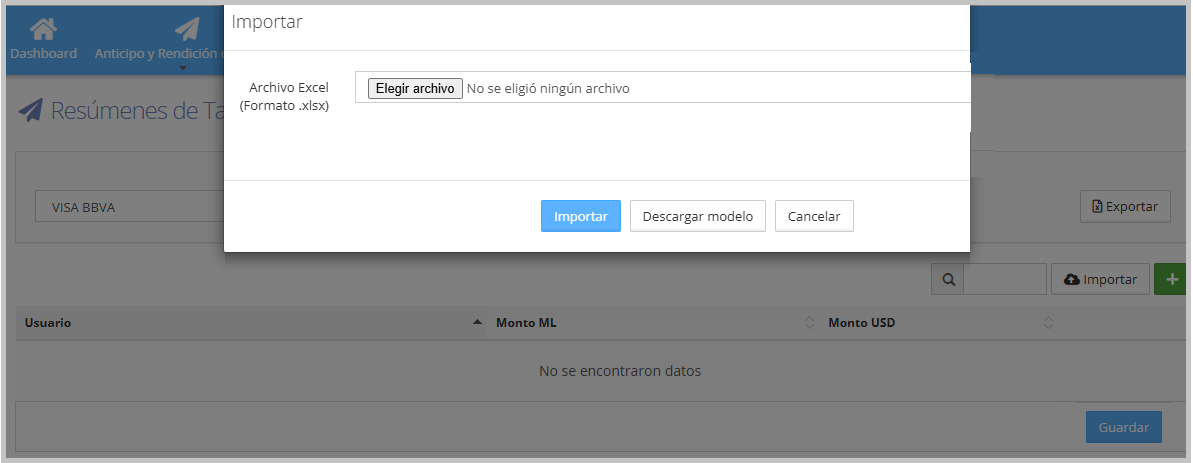
When you click Import, a window will open where you can:
Select the file to import from your computer
Download the corresponding template file from T&E Express
Confirm the upload with the Import button, or cancel