The support portal is for the company's Level 1 Support user. This user is responsible for first receiving employees' requests and inquiries, which are generated outside this Help Center, and for sending to the T&E Express team those requests that require assistance.
Depending on the company, Level 1 Support functions are carried out by the Administrator, the Finance area, or the Technical Support team.
Step 1: Login and registration:
1. Go to https://soporte.tyeexpress.com
2. Log in
Click "Log in" in the upper right corner of the screen.

If you already have a user account, enter your email and password.
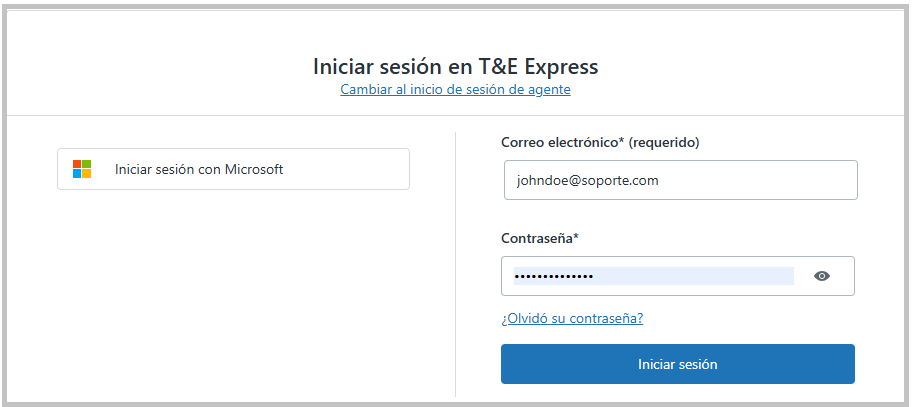
Keep in mind that this user is NOT the same one you use in the T&E Express system, but a different user for the support portal.
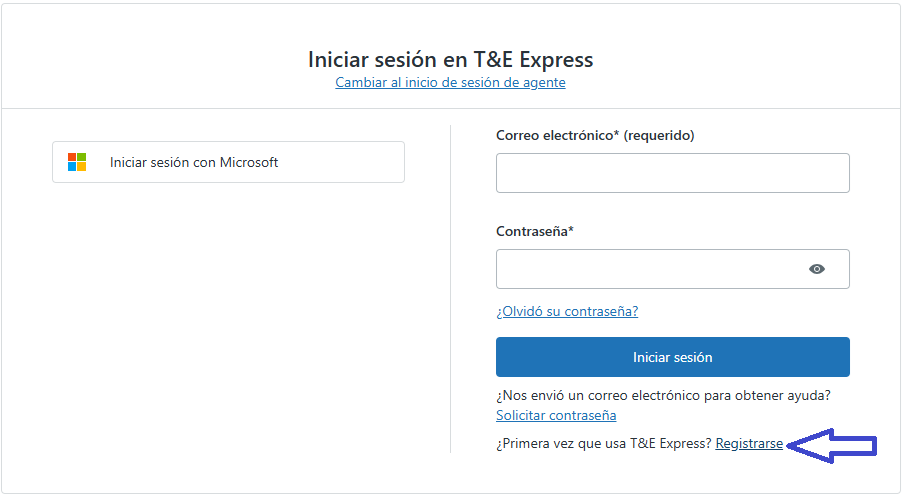
3. If you don't have a user account, you can register by clicking "First time using T&E Express? Sign up."
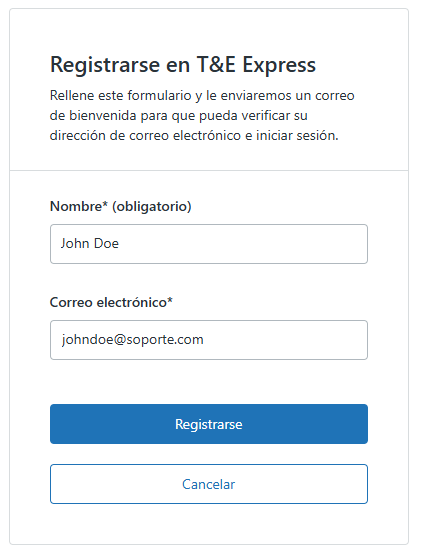
Complete the form fields:
First and last name
Click "Sign up."
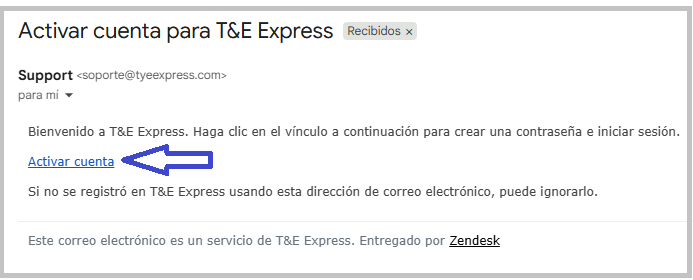
Once registered, you'll receive an account activation email automatically. Click the "Activate account" link.
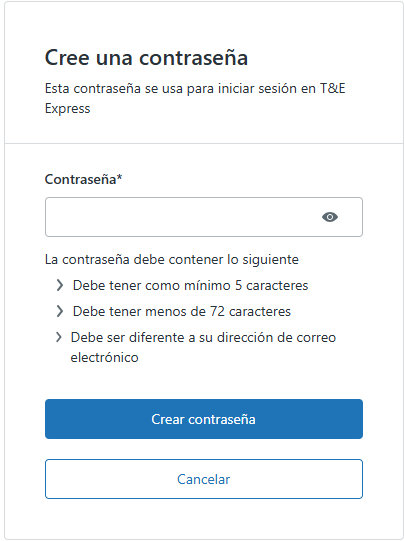
When you click the "Activate account" link, a box will open requesting you to create a password.
Once the password is created, the system automatically redirects to the Help Center.
In the upper right corner, the name of the user who just registered will be displayed, confirming that the account is now active.

Step 2: Important:
When Level 1 support users register for the first time or new users are added, a ticket must be generated (see Step 3, How to Create a Request) to the T&E Express team to enable the option that allows the Level 1 Support user to view all of the company's tickets. This allows tracking all requests, not just their own.
Step 3: Create a request:
From the Help Center, the Level 1 Support user can send requests to the T&E Express team.
The steps for creating one are detailed below:
1. Click "Submit a request."

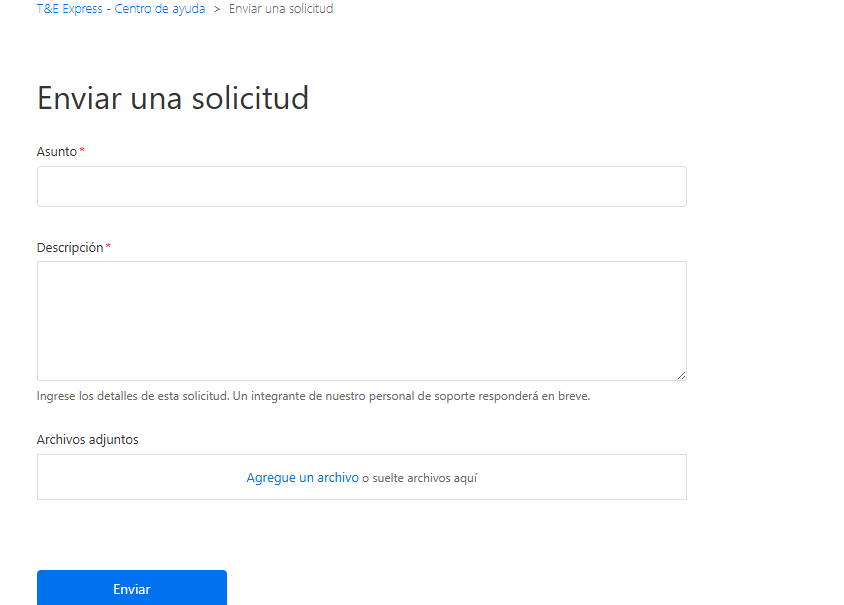
The following screen will be displayed, where you must complete the required form fields, identified with (*).
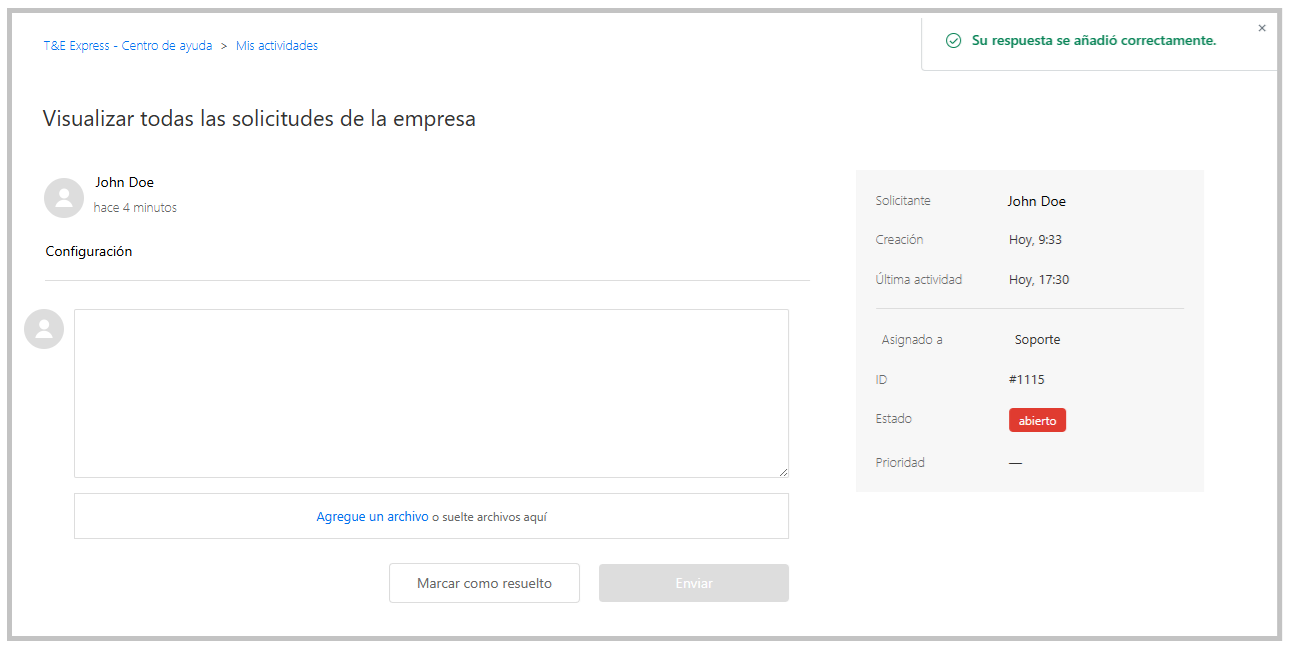
2. Once the request has been submitted, it will be displayed as follows.
Step 4: Request tracking:
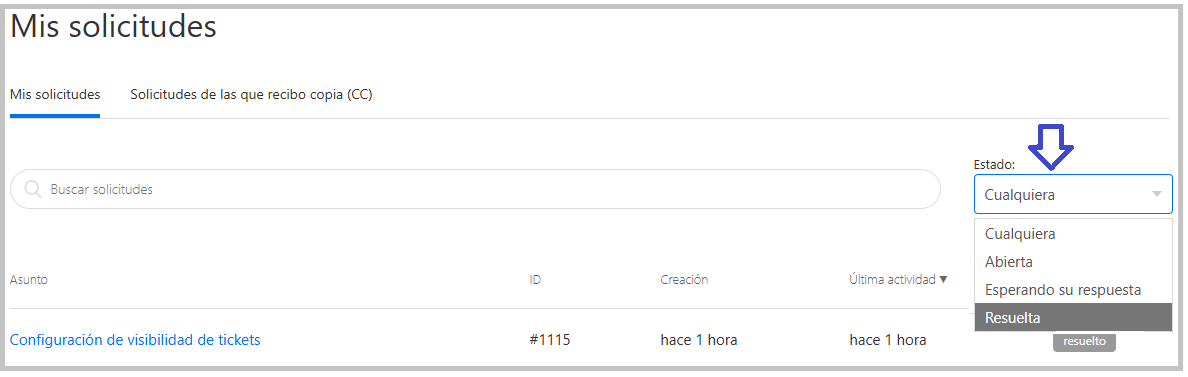
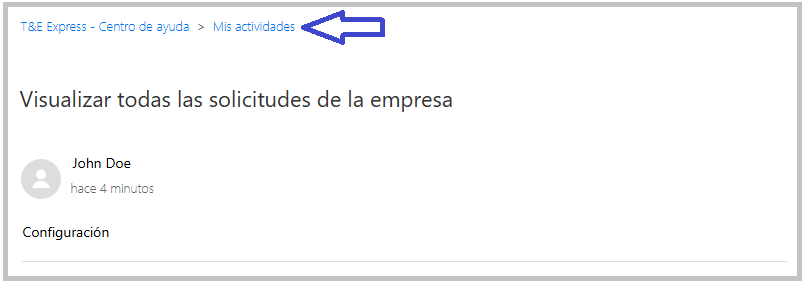
To view the generated tickets and track them, from the same submit request screen, click "My activities" in the upper left corner.
The generated tickets will be listed.
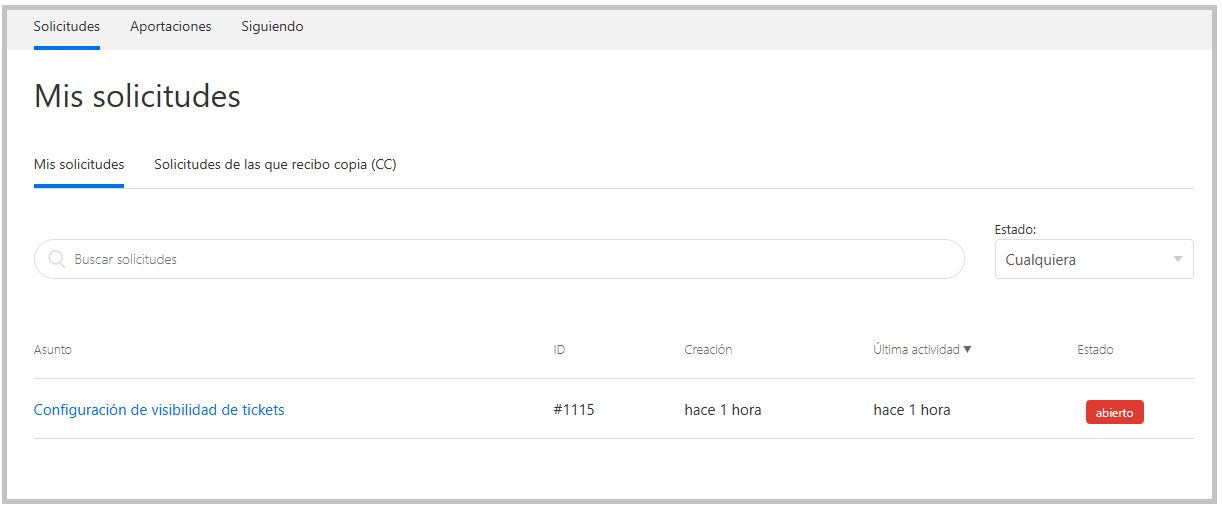
From this same screen, you can also filter and view tickets according to their status.