To configure the integration, you need to have the following information provided by Cabify:
Client ID: application identifier.
Client Secret: application secret key.
If you don't have this information, contact your Cabify representative.
Important information
Users must have the same e-mail registered in T&E as the one they use in Cabify, so the system can recognize them correctly.
If the e-mail doesn't match, the trip will not be recorded.
Cabify Integration in T&E Express: To begin configuration, a user with an Administrator profile must go to Admin > Integrations.
On this screen, the companies in your organization will be listed along with the connection status with Cabify for each one.
Locate the company you want to connect.
Click the Connect button.

When you click "Connect," the fields to complete will be displayed. Fields identified with (*) are required.
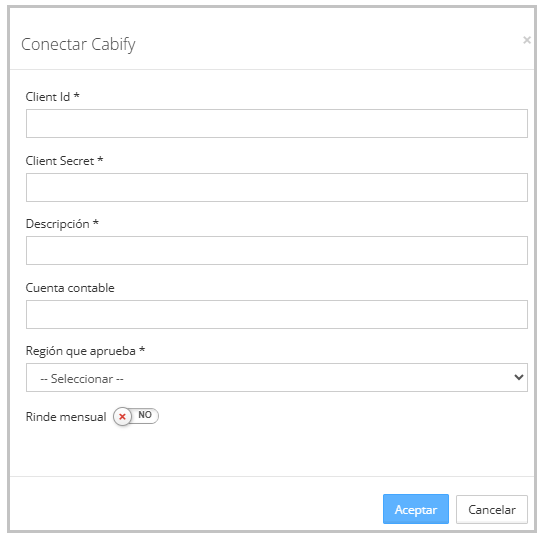
Client ID: application identifier provided by Cabify.
Client Secret: secret key provided by Cabify.
Description: identifying name of the card.
GL Account
Region: region associated with the integration.
Monthly report: if enabled, the system will automatically generate expense reports at the end of each period.
If "Monthly report" is not enabled, the user will be able to submit the expense report in draft status with the expenses generated at any time during the period.
Once the data entry is complete and if it was entered correctly, the Cabify integration will be shown as connected, indicating the status with a green confirmation symbol.

From this screen, you can also:
Disconnect the integration
Access the configuration (gear icon) to edit the previously entered information
Only the following fields can be modified:
Description
GL Account
Enable or disable the "Monthly report" option
Automatic Registration: Once the integration is active, the process is completely automatic.
The user takes a trip with their corporate Cabify account. When the trip ends, Cabify notifies T&E Express.
The system records the trip as a corporate card transaction, associating it with the user by their e-mail, thereby creating an expense report in draft status.
Each transaction includes:
Date
Amount
Currency
Notes with coordinates
Kilometers traveled