Categories Limits: to access Categories Limits, go to Admin > Categories Limits > Categories Limits.
To configure a category limit, click the icon

located in the upper right corner of the screen, as shown in the image below:

Clicking the (+) icon will open the following screen to fill in the required fields, marked with an asterisk (*), along with the list of categories registered in the system.
Category: name of the category.
Type: select whether the limit will be per expense or per day.
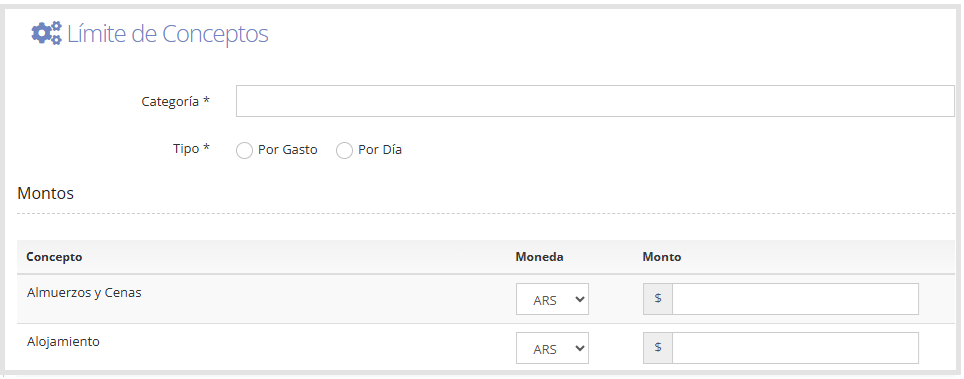
Below is the configuration detail for each 'Type' mentioned.
'Per Expense' type: The category limit per expense refers to capping a category at a specific amount.
If the Hide option is enabled, the category will not be visible to users who have that category assigned.
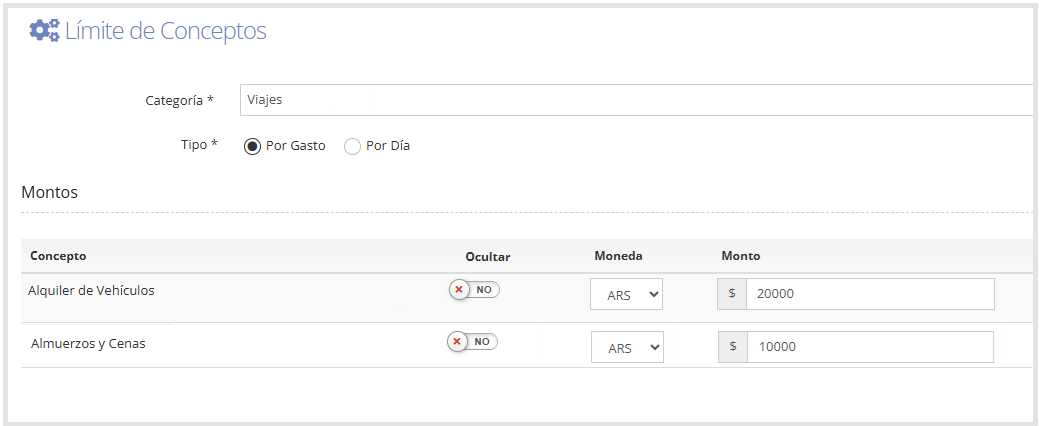
If the user enters an expense that exceeds the amount configured for that category, the system will show a text box where they must justify the reason for the excess.
Without this justification, they will not be able to submit the expense report.
as shown in the image below.

'Per Day' type: a daily limit category is assigned to restrict the total amount a user can report in a single day for a category.
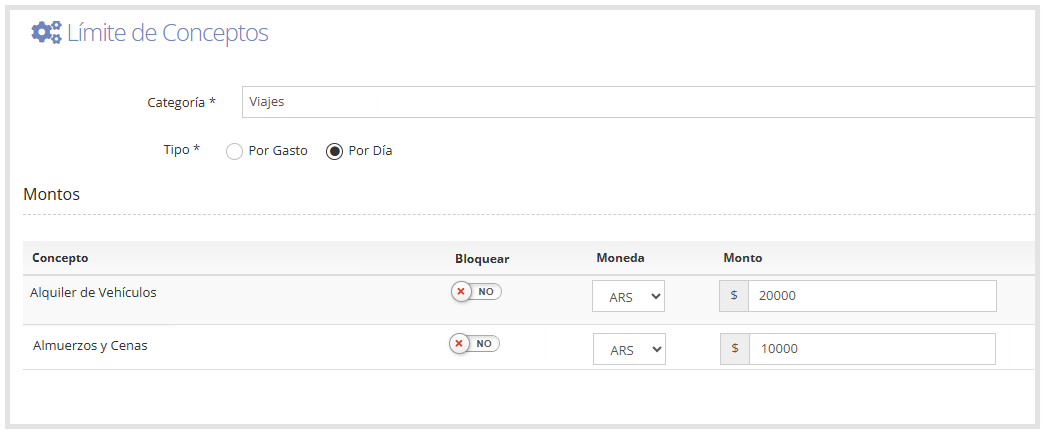
If a user enters several expenses with the same category on the same day and exceeds the configured daily limit, the system will flag those expenses with an alert, as shown below.
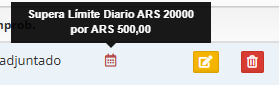
The check is performed against the user's history, not against a specific expense report.
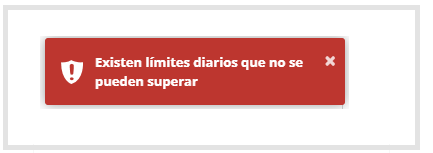
If the "Block" option is enabled, this means that if the user exceeds the granted amount, the system will block the expense report and show the following error message:
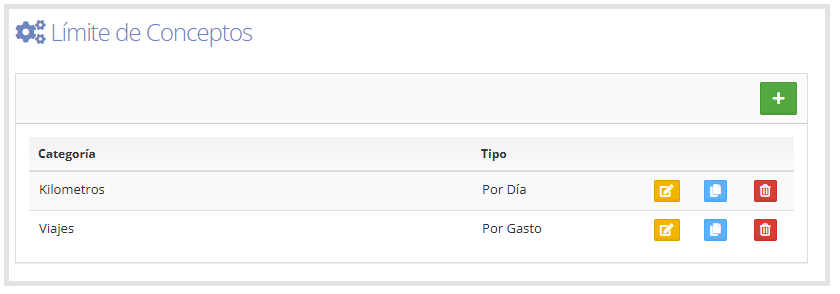
Once you finish entering Categories Limits, all created categories will be shown, as seen below.
Important:
If the category has attendees configured, the amount assigned in the limit is per person. That is, the system divides the total expense amount by the number of people assigned to the expense, and checks that this value doesn't exceed the configured limit.
For more information on how to configure attendees, see the guide Categories.
On the right side of each category, you can perform the following action:
Edit

Allows editing the entered information.
Copy

Duplicates an existing category, replicating the configured information (limit type, categories, and assigned amounts).
Delete

Allows deleting the created category.