
Automatic integration: T&E Express lets you enable automatic integration of charges for VISA and AMEX, avoiding manual statement uploads.
In both cases, you must request that the information be sent on a daily, bi-currency basis.
VISA: contact the bank's account executive and request that a ticket be created with the operations area, indicating that the automatic daily, bi-currency transaction feed needs to be activated so it reaches T&E Express.
AMEX: the integration request must be made to the T&E Express team, indicating that the daily, bi-currency transaction feed needs to be activated so it automatically reaches the system.
Once enabled, charges are received automatically in the system and it won't be necessary to import files manually.
Corporate card: To create a corporate card, go to Admin > Corporate Cards > Card. When you enter, you'll see the following screen.
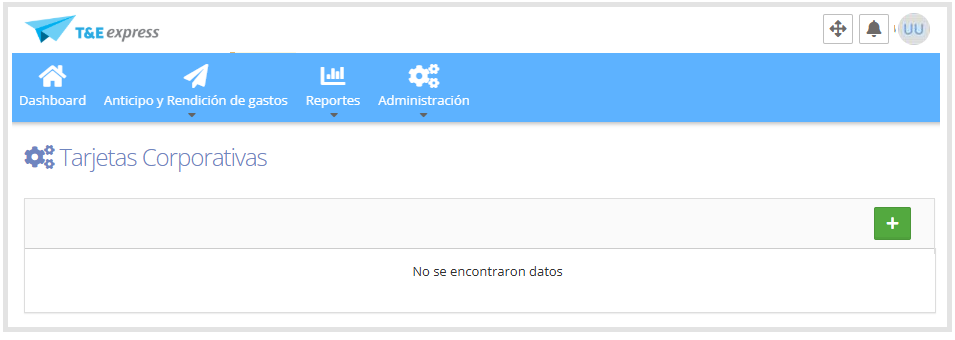
Click the + button located in the upper right corner to add a new card.
Clicking it will open a new screen where you must fill in the required fields marked with (*):
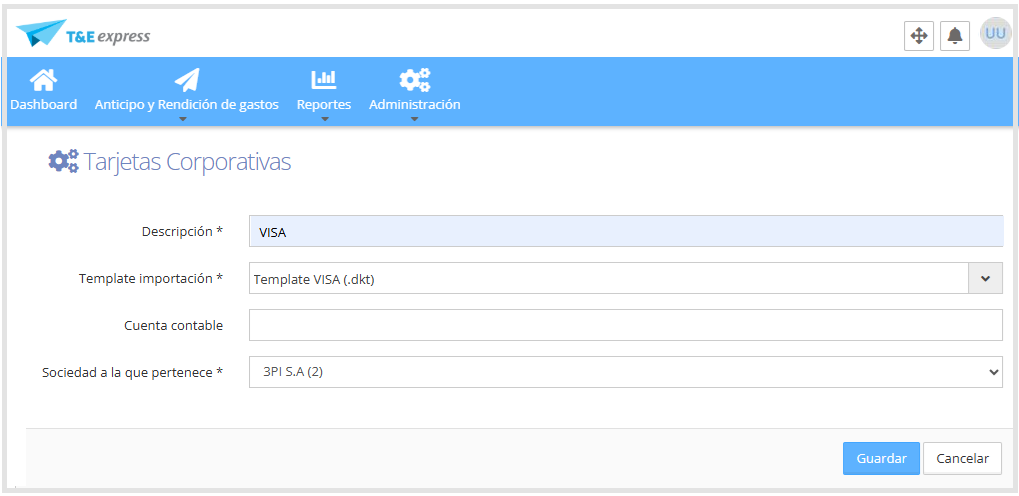
Description: identifying name for the card.
Import template: select the template according to the file format you can download from the bank.
If you can't find a compatible template, you can use the "-No template" template, which lets you enter charges manually.
For questions or assistance on which template to use, contact the T&E Express team.GL Account: if needed, you can link the card to a specific GL Account.
This information is used both when creating accounting entries and in the Web Service (WS) to integrate the data with the ERP.Company it belongs to: select the corresponding company.
Once the information is complete, click Save. The system will redirect you to the corporate cards screen, where the cards that have been entered will be displayed, as shown below.
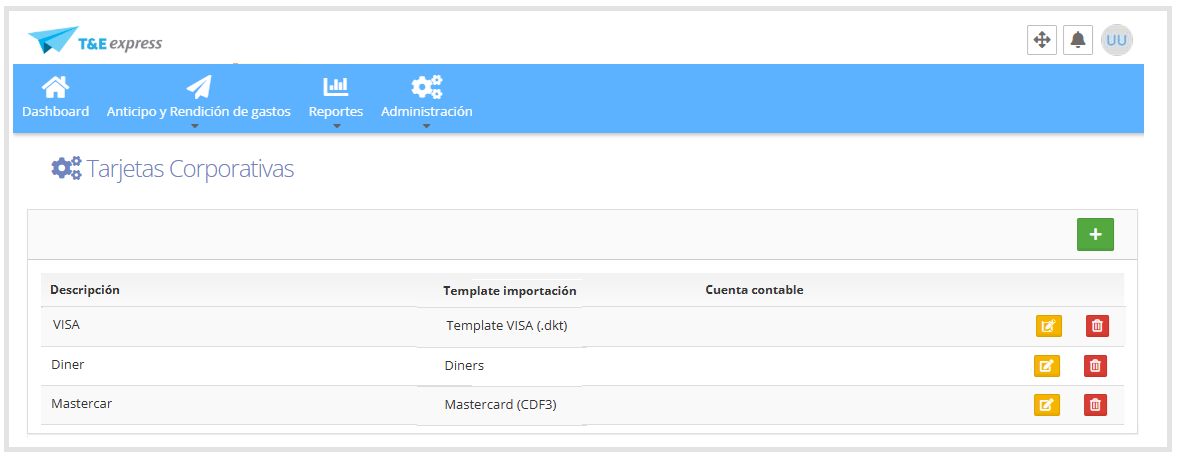
From this screen, you can perform the following actions.
+ Button: Create a new corporate card.
Edit

Allows modifying an existing card.
Delete

Allows deleting a previously entered corporate card.