
When a user with an administrator profile needs to change the approver of a specific cash advance or expense report, they must follow these steps:
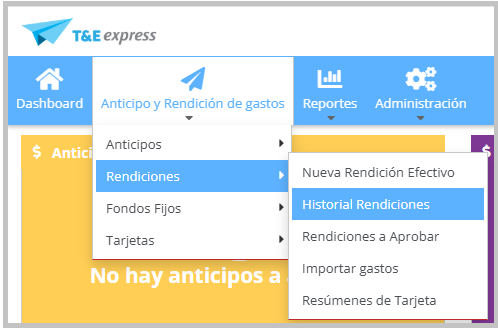
Go to Travel & Expenses "T&E" > Expense Reports > Expense Reports List
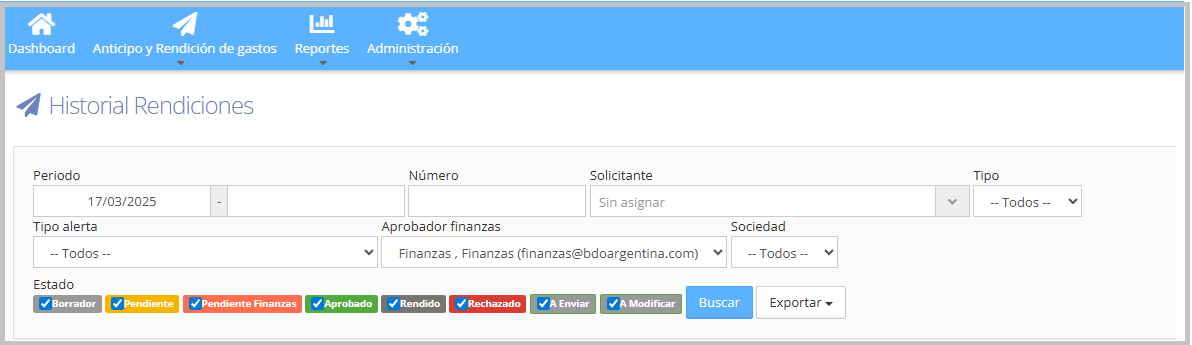
When you enter the Expense Reports List, the following filters will be shown to make searching easier:
Period from / to: lets you narrow the search by upload or submission dates.
Number (Expense Report): direct search by expense report number.
Requester: filters by the user who created the expense report.
Type: lets you select the expense report type (All, Cash, Credit Card, or Petty Cash).
Alert type: filters expense reports by the associated alert category.
Finance approver: lets you filter by profiles listed as the Finance approver.
Company: lets you filter expense reports by company.
To modify the approver, you must select expense reports that are in "Pending" status.
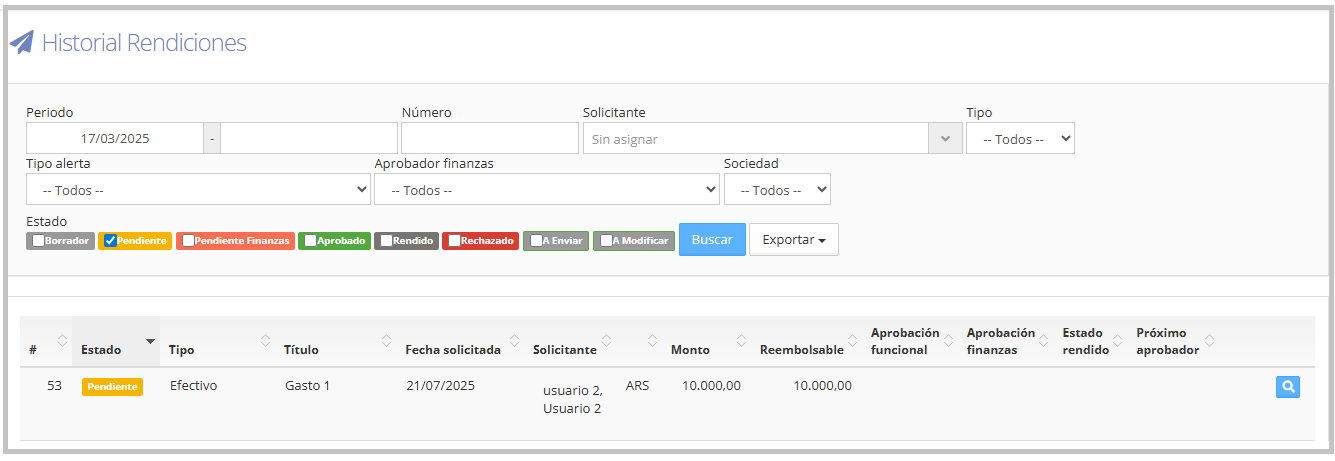
Click the magnifying glass icon, and the expense report detail will appear.
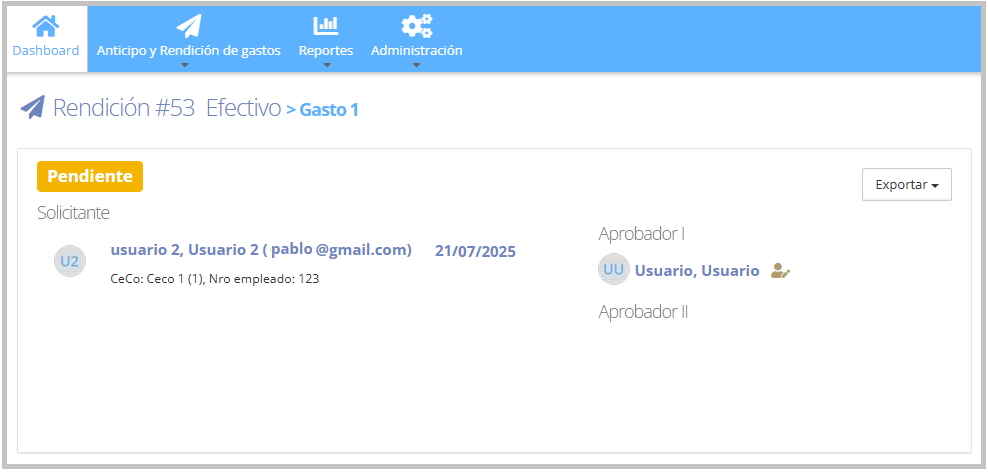
On the right side of approvers, we'll see the following icon

clicking it will open the following box.
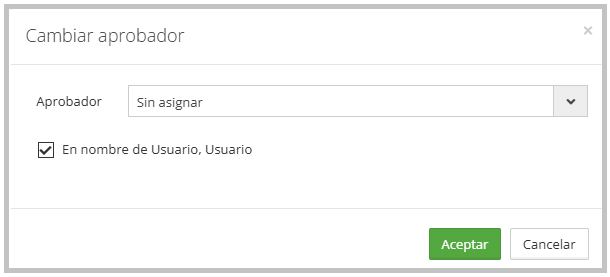
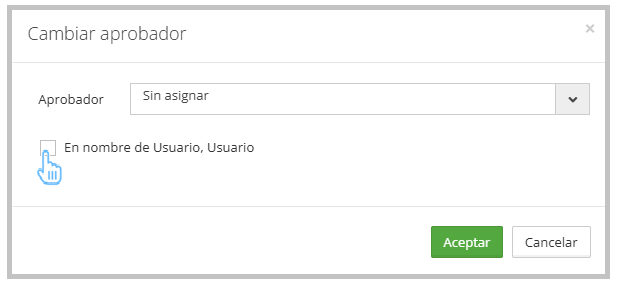
To modify the approver, deselect the approver currently assigned to the user.
In the approver selector, choose the approver who will be assigned to the expense report.
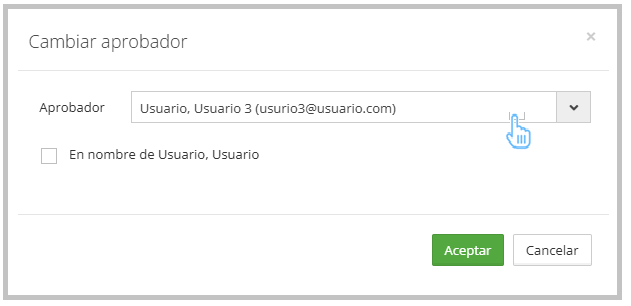
To finish, click "Accept". The newly assigned approver will receive a notification.
For more information on how to assign approvers in the system, see the guide Users.